Set up the captain app on your waiters' own phones.
Two codes, then a PIN. A setup code from the dashboard's Devices page signs the phone into your store. A pairing code from the register — Settings → Multi-terminal → Host the hub — links it to the till on your own Wi-Fi. Then each waiter signs in with their own staff PIN. Fifteen minutes, once.
Android + iPhone · pairs on the shop's own Wi-Fi · no per-waiter charge · owner job, done once
What you need on the table in front of you.
- The register, running and awake. The pairing code comes off the till's own screen, so the desktop register has to be installed and signed in first — that is the five-step getting-started walkthrough.
- One Wi-Fi network. The phone and the register must be on the same restaurant Wi-Fi. The guest network is the single most common reason a pairing fails.
- A phone per waiter — their own. Android or iPhone. No per-waiter charge, no device bought from us, no MDM.
- Your staff added, with PINs. The dashboard's Staff page mints them. You already have yours — signup created it.
No laptop at the counter at all? Then the phone is not a captain — it is the register, and it must be enrolled as one. That is a different setup: run a whole service day on one Android phone.
Six steps, once per phone.
Open the captain app on the phone
Any Android phone or iPhone the waiter already owns will do — there is no per-waiter or per-phone charge. The app is not on the Play Store or the App Store, so don't send your staff looking there; it comes from us. The first screen reads "Take orders at the table".
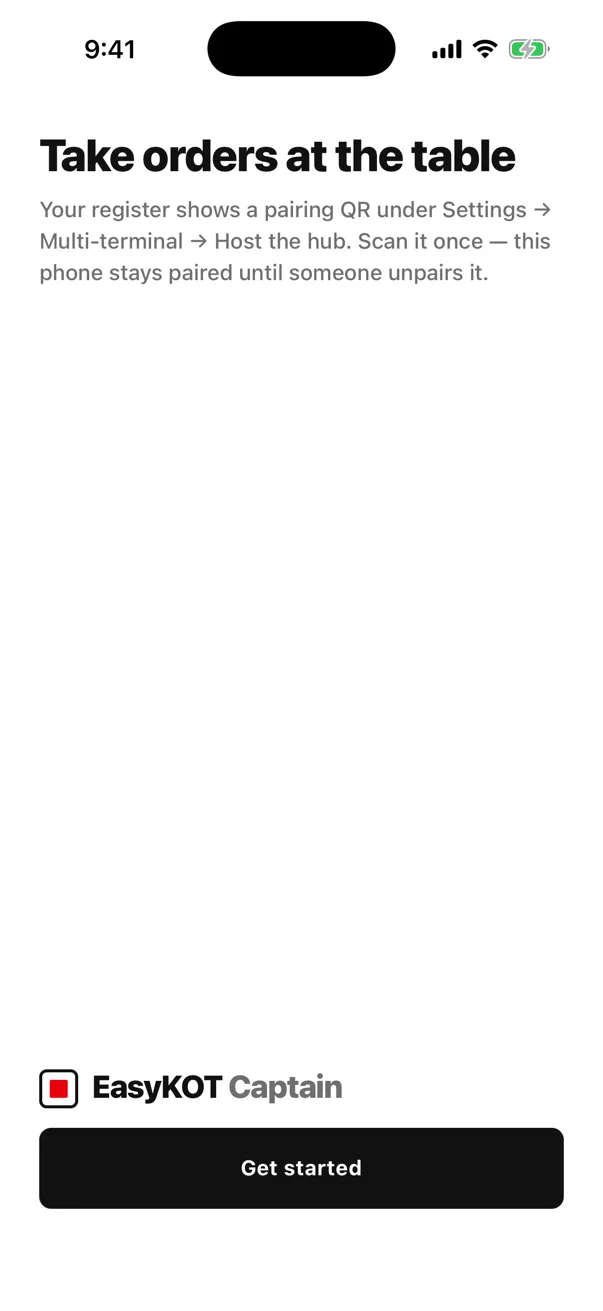
The first screen the phone shows, before anything is signed in.
Sign the phone into your store — the setup code
In the owner dashboard open Devices → Add device, choose Captain (Waiter phone), give it a name you'll recognise in a list, and press Create & get setup code. The code is shown once, with a QR, a Copy code button and Share on WhatsApp, and it lasts about an hour. On the phone, the screen "Connect this phone to your store" takes it. Choose the kind carefully — it is fixed when the code is minted and cannot be changed afterwards.
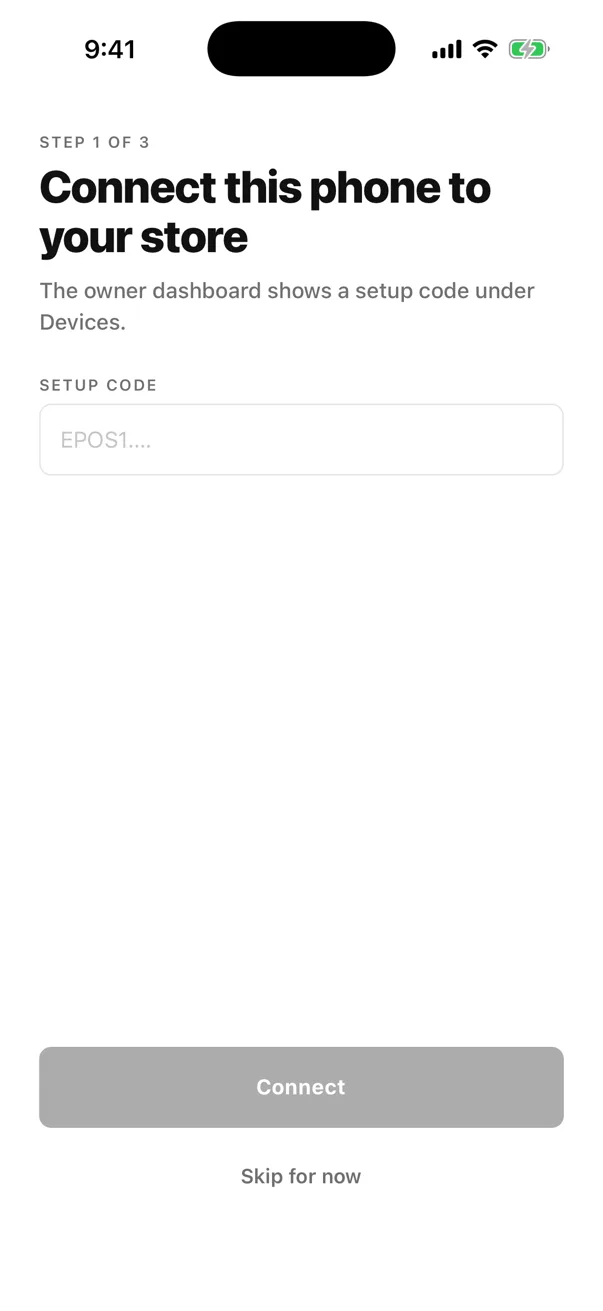
Step 1 of 3 on the phone — the setup code from Devices goes here.
The device kind is fixed at the moment the code is minted. Register (Desktop till), Captain (Waiter phone) and Kitchen display are three different jobs and you cannot switch a device between them later. A waiter's phone is Captain. If you picked wrong, mint a fresh setup code with the right kind.
Pair the phone with the register — the 5-minute code
This is a second code, from a different screen, and it is where most setups stall. On the register open Settings → Multi-terminal → Host the hub → Code for a phone. It is single-use, expires in five minutes, and shows as four-character blocks plus a QR that also carries the till's address. On the phone, "Pair with your register" offers Scan pairing QR or Type the code instead. Both devices must be on the same restaurant Wi-Fi.
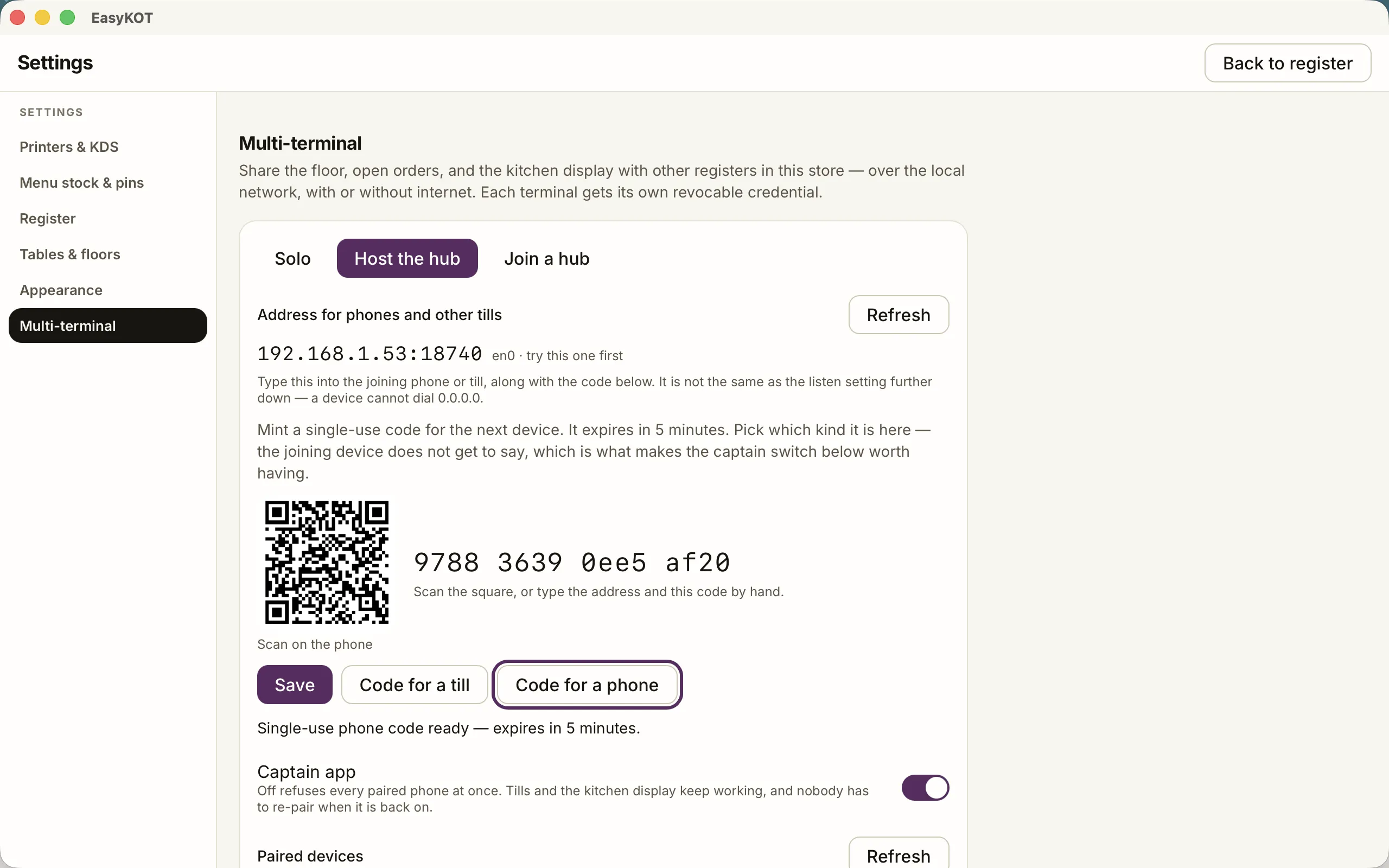
The register's side — Settings → Multi-terminal → Host the hub → Code for a phone.
- Type the till's LAN address, not
0.0.0.0— the app refuses that one by name. - The camera is an accelerator, never the only door. A waiter who declines the camera prompt lands on typed fields and pairs exactly the same way.
- "Pair later — orders go over the internet for now" is a real option, not a failure. Orders still reach the kitchen; they just take the long road.
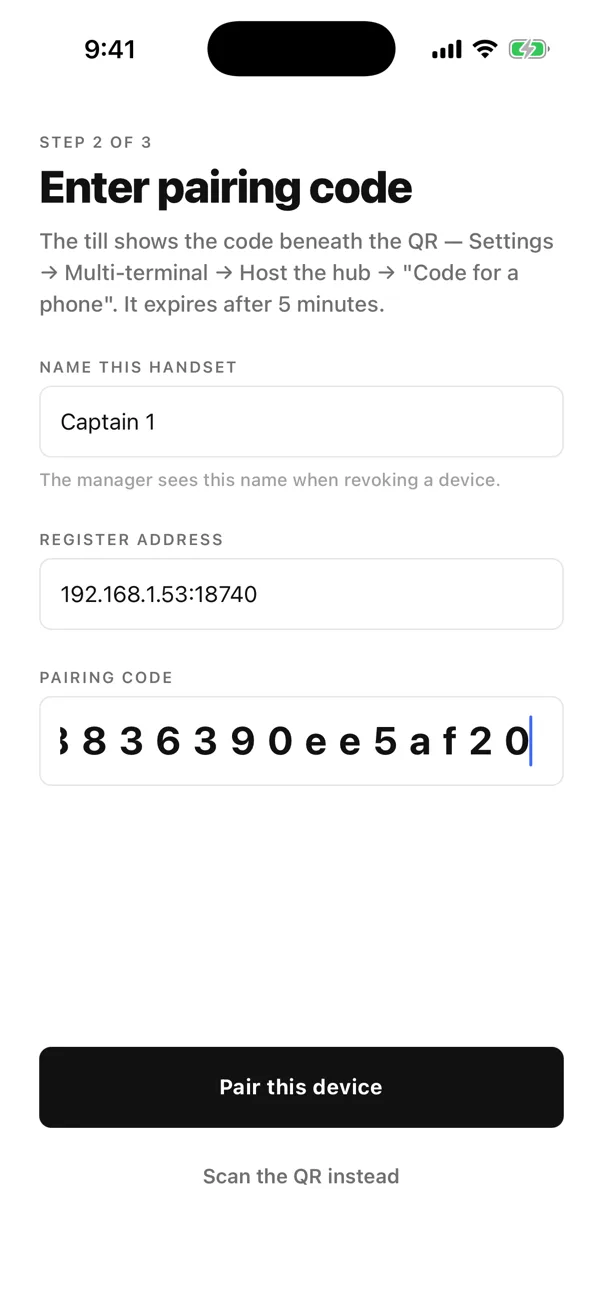
Typed by hand — the same address and code shown on the register above.
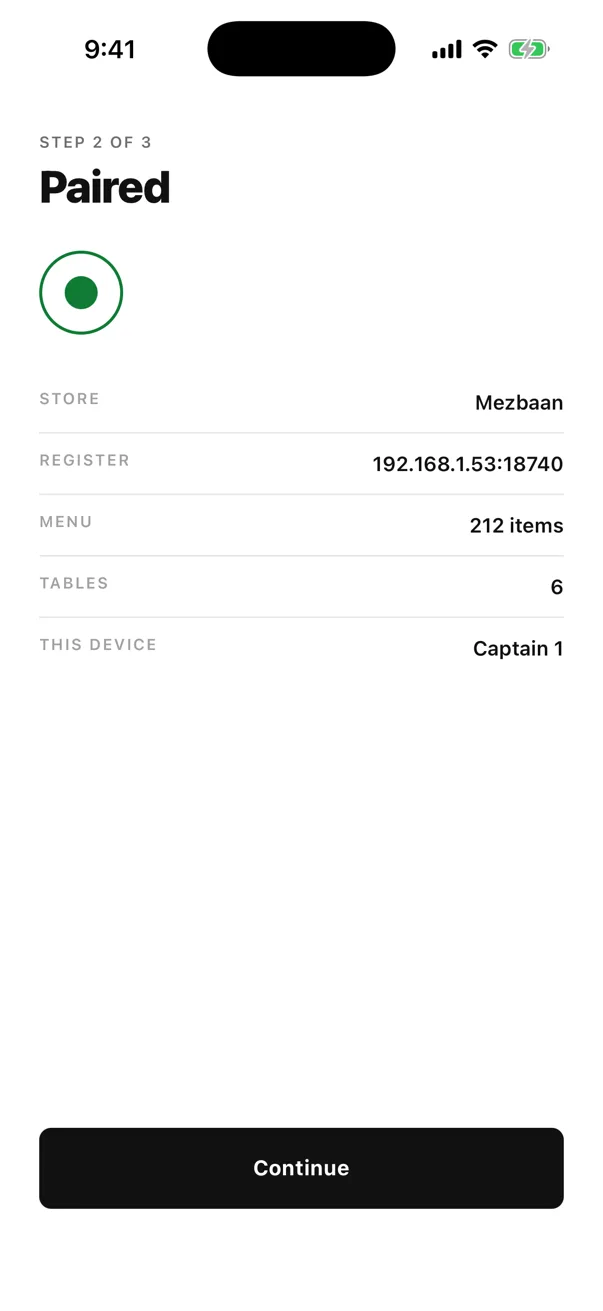
Paired — the phone now knows the store, the menu size and the table count.
Say who prints
The phone asks "Who prints the KOTs and bills?". With a till at the counter, choose "A register will print" — the KOT comes out on the kitchen printer wired to the register. "Print from this phone" is the other setup entirely: it turns an Android phone into the store's printer.
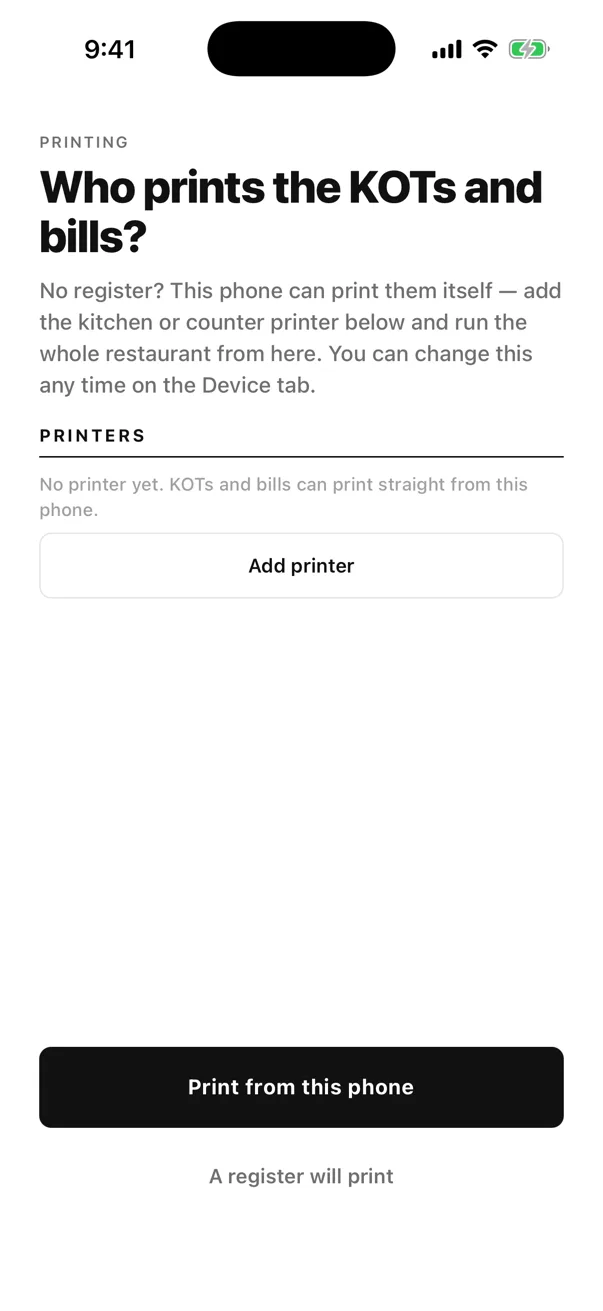
No printer paired yet — pick "A register will print" when a till is on the counter.
Give each waiter their own PIN
Staff PINs come from the dashboard's Staff page and work offline. The dashboard takes 4 to 12 digits — keep a waiter's to eight or fewer, which is what the phone's keypad accepts. The phone's last screen is "Enter your PIN". Separate PINs are what make the day-end readable — who rang what, who approved a discount, whose table carried the void.
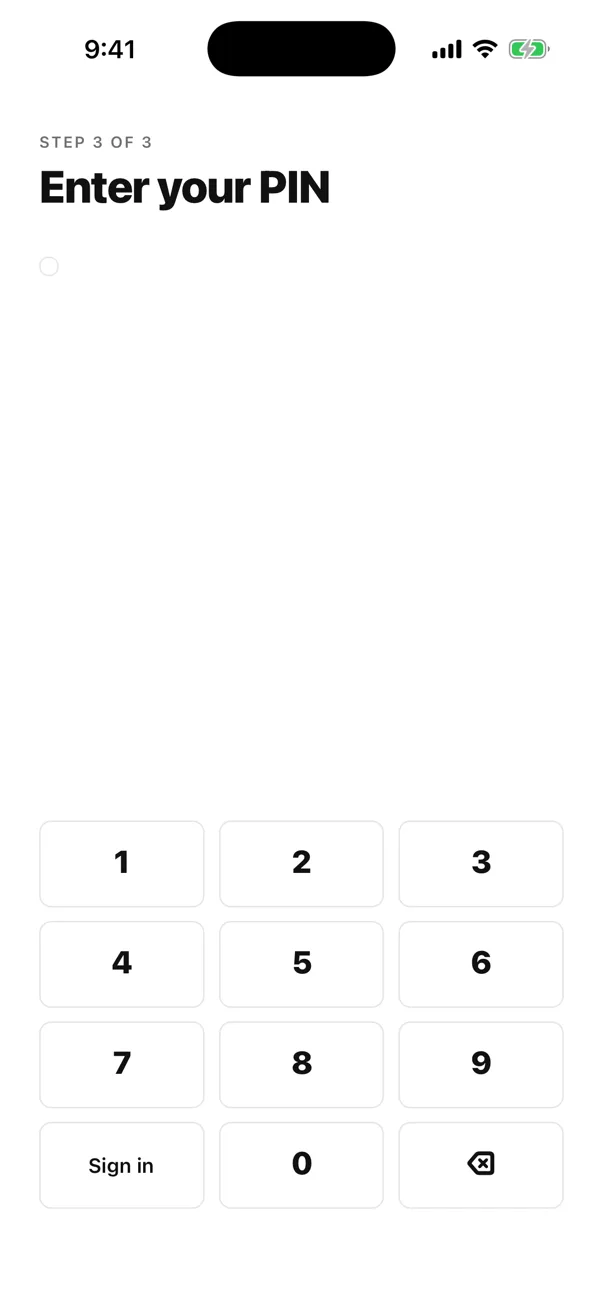
Step 3 of 3 — each waiter signs in with their own PIN, not a shared one.
Fire a test KOT before service
Open a free table, add one cheap item and press Fire. The KOT prints in the kitchen — or lands on the kitchen display — and the round appears on the register's cart within a second on your own Wi-Fi. Do this before the first guest walks in, not during the rush.
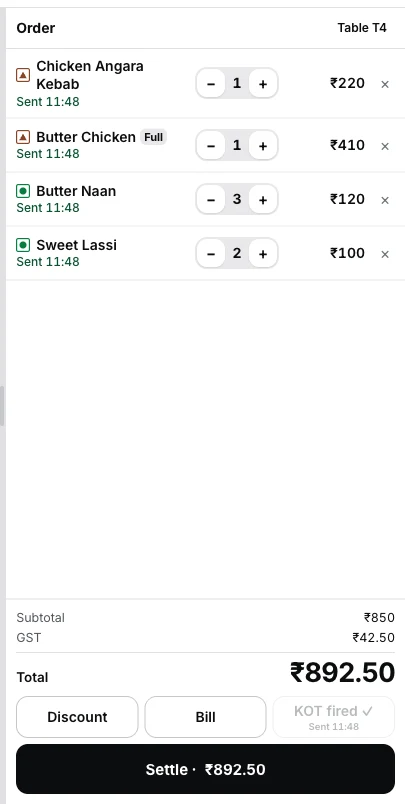
The other end of the test: the round lands on the register's cart, marked as sent to the kitchen.
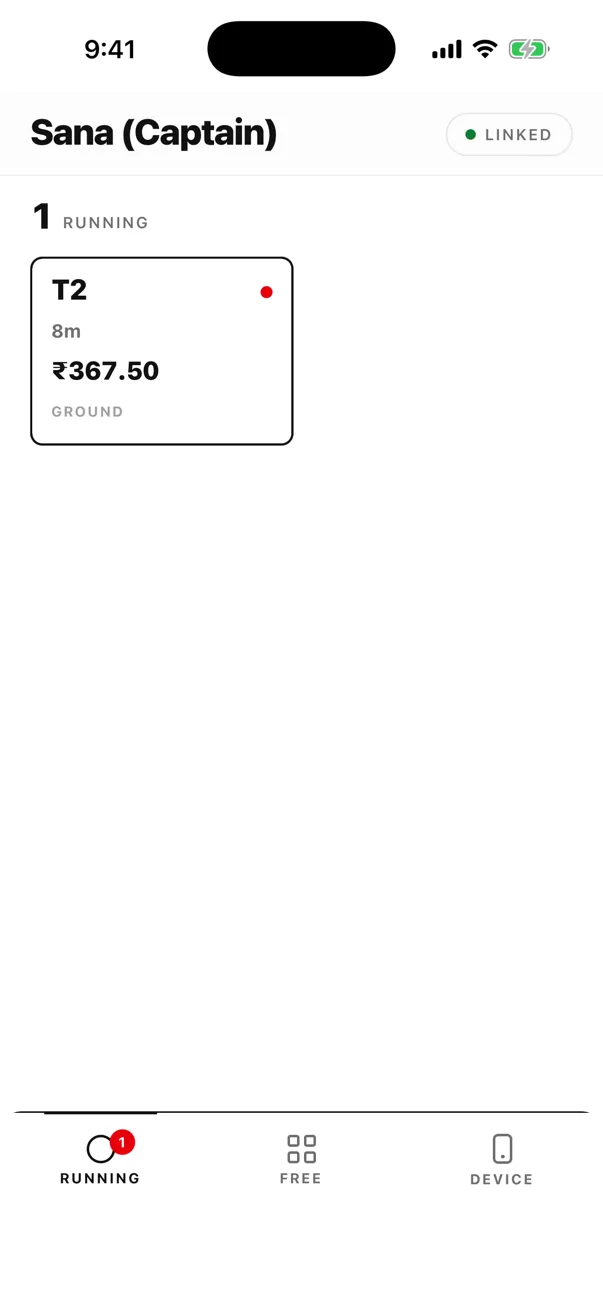
Three tabs, and nothing to teach.
- Running. Open tabs, oldest first, each with an elapsed timer and an amount, under a summary row — Running · To send · Over 45m. Seating timers warn at 45 minutes and go late at 75, with a colour and an edge bar, so it reads without colour vision.
- Free. Only unoccupied tables, plus a + Takeaway button. Occupied tables are hidden, so a second tab on one table is not a mistake anybody can make.
- Device. The phone's own settings — pairing, who prints, and the shift.
Want to see the counter half before you set anything up? Open the live demo on a laptop and ring a bill yourself — it is the real register running in the browser, so it needs a laptop-size screen. Reading this on a phone? the Android phone register is the nearer door.
How many phones do you actually need?
Fewer than vendors would like you to buy. There is no per-waiter or per-phone charge — the phones are included in the one ₹299/month price — so the count is a floor question, not a billing one.
- A small place: one phone. Kept at the pass, picked up by whoever takes the next table. Rounds still land on the right bill because the table, not the phone, owns the check.
- A full floor: one per waiter on shift. Their own handset, their own PIN, so the day-end can tell them apart.
- Each phone is enrolled separately. One setup code per device from Devices — a code is not shared between two phones.
Do the waiters need mobile data? No.
Two transports run at the same time and the waiter never chooses between them — that choice is the app's job, not a waiter's in the middle of a rush.
- On the store Wi-Fi — one hop. The phone reaches the till's hub directly and the round is acknowledged. This is the fast path, and it needs no internet at all.
- Off the Wi-Fi, internet up — a few seconds. The round goes via our server and arrives at the printing till. Slower, still reliable.
- Neither — held, and said out loud. The round waits on the phone and both sides keep retrying. A fired round stays badged until the register confirms it, and the app tells the waiter plainly: "The register hasn't got this. Stay on the restaurant Wi-Fi, or tell the kitchen."
That last line is the whole difference from a cloud POS: EasyKOT would rather tell a waiter the truth than pretend an order arrived.
A phone that won't pair — four causes, in order.
- Different networks. The phone is on the guest Wi-Fi, or on mobile data with Wi-Fi off. Both devices must be on the same restaurant network. The app says so in as many words: "No register at that address on this Wi-Fi. Check the address, not the code."
- The code expired. The pairing code is single-use and lasts five minutes. Once it is spent or stale you get "That code was refused — mint a new one on the till." Mint a fresh one; nothing is broken.
- The till is asleep or the hub isn't hosted. The register has to be awake with Settings → Multi-terminal → Host the hub switched on. A sleeping laptop hosts nothing.
- The wrong address was typed. Use the till's LAN address as shown on the register.
0.0.0.0is rejected by name — it is not an address anything can be reached at.
Still stuck? Skip pairing for now — choose "Pair later — orders go over the internet for now". Service runs, orders reach the kitchen in a few seconds instead of one hop, and you can pair properly after close.
Straight answers.
Can waiters use their own phones?
Does the captain app need internet?
What happens if a waiter's phone dies mid-order?
How many phones can connect at once?
Does each waiter need a separate login?
Is there an iPhone version?
Do I need to buy a separate phone for the captain app?
You configured it once. They'll use it two hundred times a day.
Now take a real order
Pick the table, tap the dishes, add the note the kitchen reads, fire. The page to send your waiters on WhatsApp.
How a waiter fires a KOT →What the captain app does
The owner's case for putting the menu in a waiter's pocket — speed, accuracy, and who controls the money.
See the captain app →Where the KOT comes out
Add the kitchen printer on the register and give it the Kitchen (KOT) role, so fired rounds print on the right paper.
Set up the kitchen printer →Also worth a look: the kitchen display, if you would rather skip paper, or pairing a Bluetooth thermal printer to an Android phone.
Run it 3 months, then pay for it.
Three months free, full product, no card. Made in India, for the counter — built inside a running restaurant.