Connect a thermal printer to your register — Wi-Fi, USB or serial.
Open the register's Settings → Printers & KDS and press Set up a new printer. Tell it the brand, let it scan your Wi-Fi, USB ports and paired Bluetooth, pick your printer, choose 80mm or 58mm to match your paper roll, and print a test slip. A slip comes out — done. Every step below is the real screen, not a mock-up.
Windows + Mac register · network, USB, serial, paired Bluetooth and your OS print queue · no driver to install for network or USB
Three things on the counter.
- The register, installed and signed in. Download the register for Windows or Mac if you have not yet — printer setup lives inside it, not on the website.
- A thermal printer with paper in it, switched on. Any ESC/POS receipt printer — that is the language nearly all of them speak. If it is a network printer, it must sit on the same Wi-Fi or switch as the laptop; EasyKOT refuses a public IP by name.
- The right paper roll. 80 mm or 58 mm — measure the roll you buy, because the answer changes how the bill is laid out.
No printer yet? You can still try the register in your browser and see the whole billing flow — printing is the one thing a browser cannot do. And you never have to hunt for this screen on your own: an empty till nudges you itself — "Set up your printer — Connect a receipt printer so kitchen tickets and bills come out on paper. You can do this later — sales work without it" — with a button that opens straight here.
The seven steps, with the setup wizard.
Open Settings → Printers & KDS and press Set up a new printer
Click the gear in the register's status rail and pick Settings. Printers & KDS opens by default, and with nothing connected yet it offers three buttons: Set up a new printer, Detect printers, and Add manually. Set up a new printer is the guided path — it walks the other two for you and finishes with a test slip.
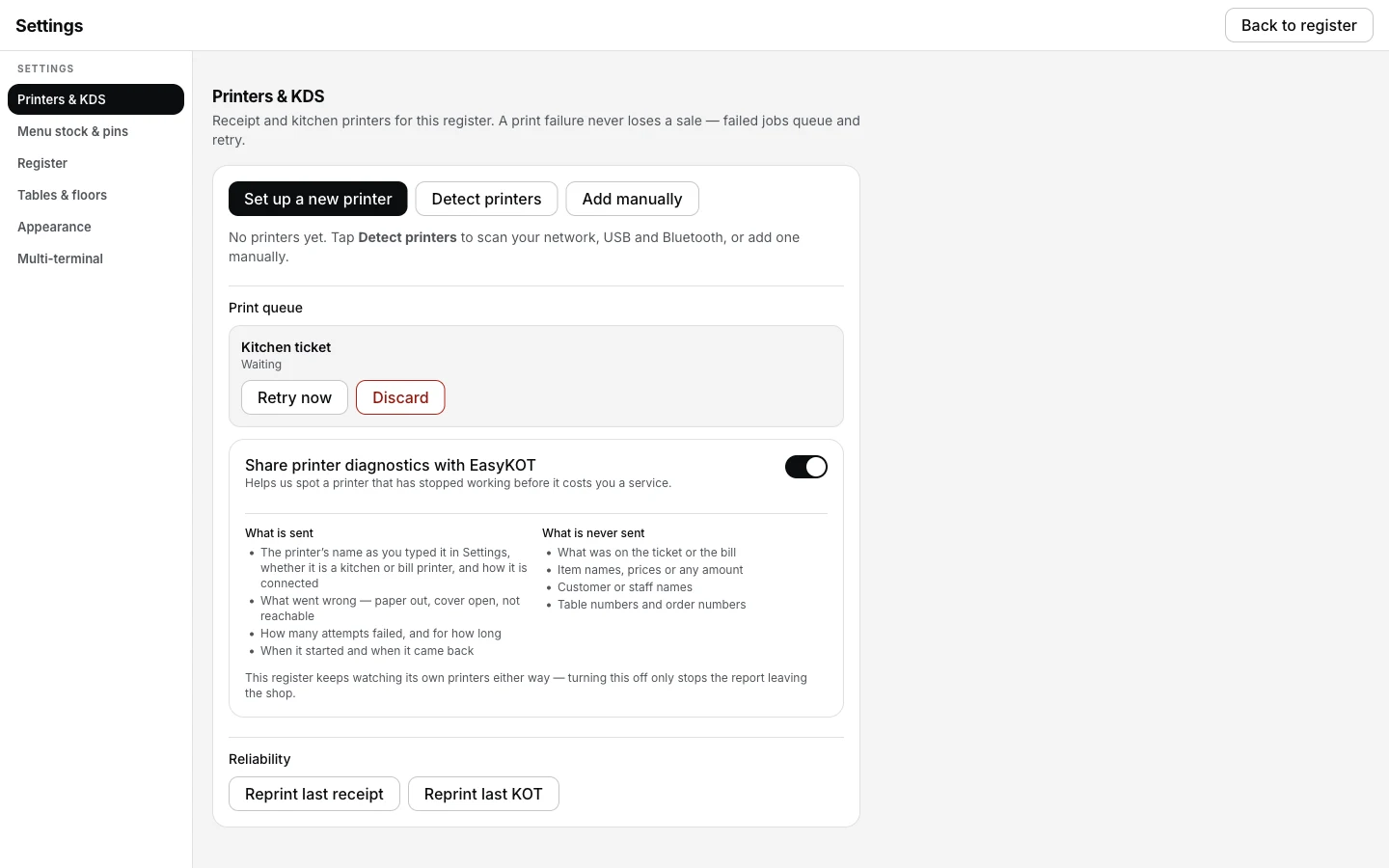
Settings → Printers & KDS, before any printer is added.
Tell it which printer it is
Pick Epson, TVS, Rongta or Xprinter, or Another brand / not sure if you don't know or it isn't one of those four. This only changes which factory address is tried first and which onboarding tip appears next — every ESC/POS printer works the same way from there, and the test print is the real check either way.
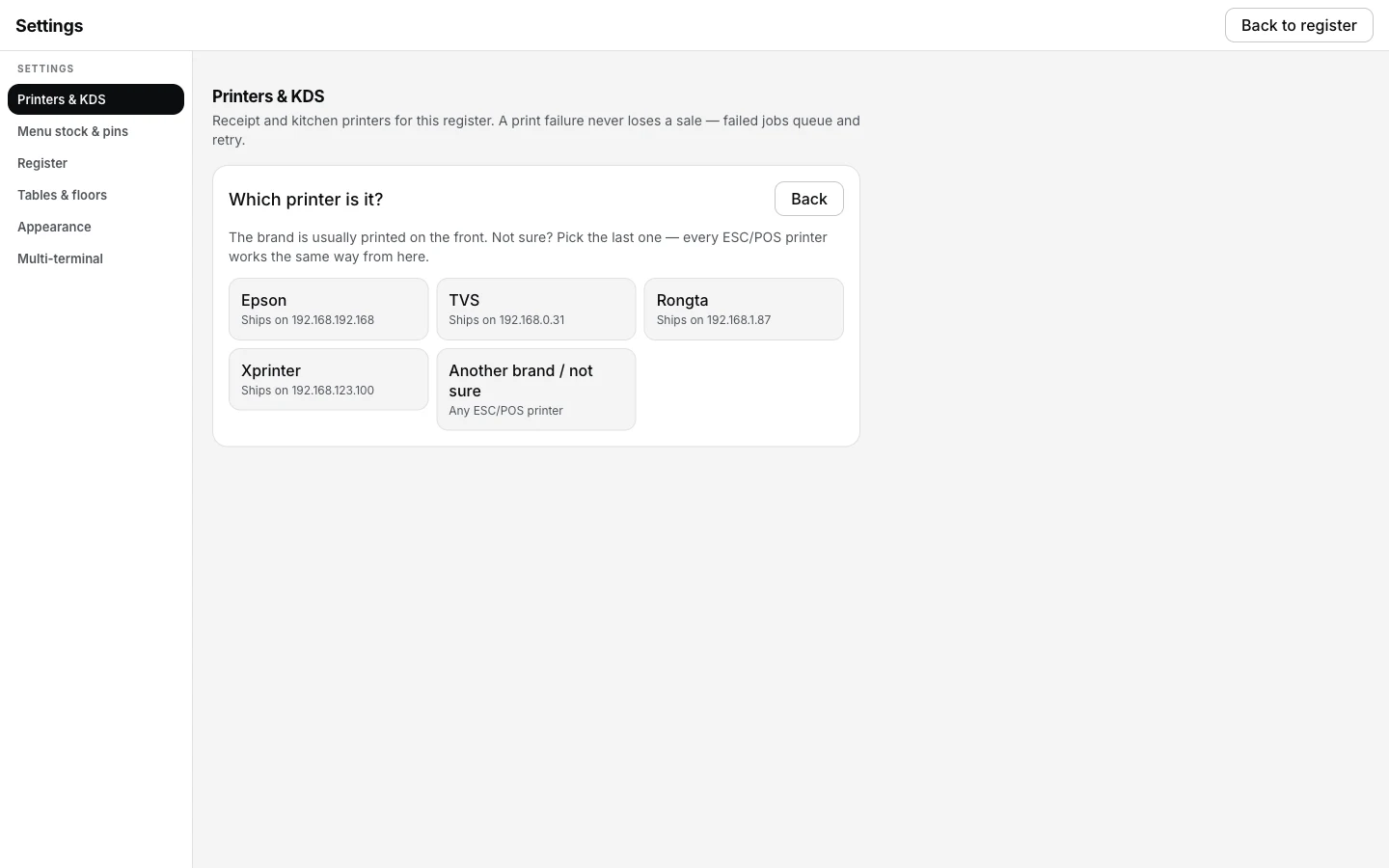
Settings → Printers & KDS → Set up a new printer → Which printer is it?
Read the brand's tip, then let it scan
Each brand gets one paragraph of real advice — Epson ships DHCP-first and finds itself once it's on the router; TVS, Rongta and Xprinter ship on a fixed factory address and need one cable-first visit. EasyKOT then scans four places at once: printers advertising themselves on the Wi-Fi, every address answering on port 9100, the USB ports, and paired Bluetooth — with a heading that names which of the four it's doing right now.
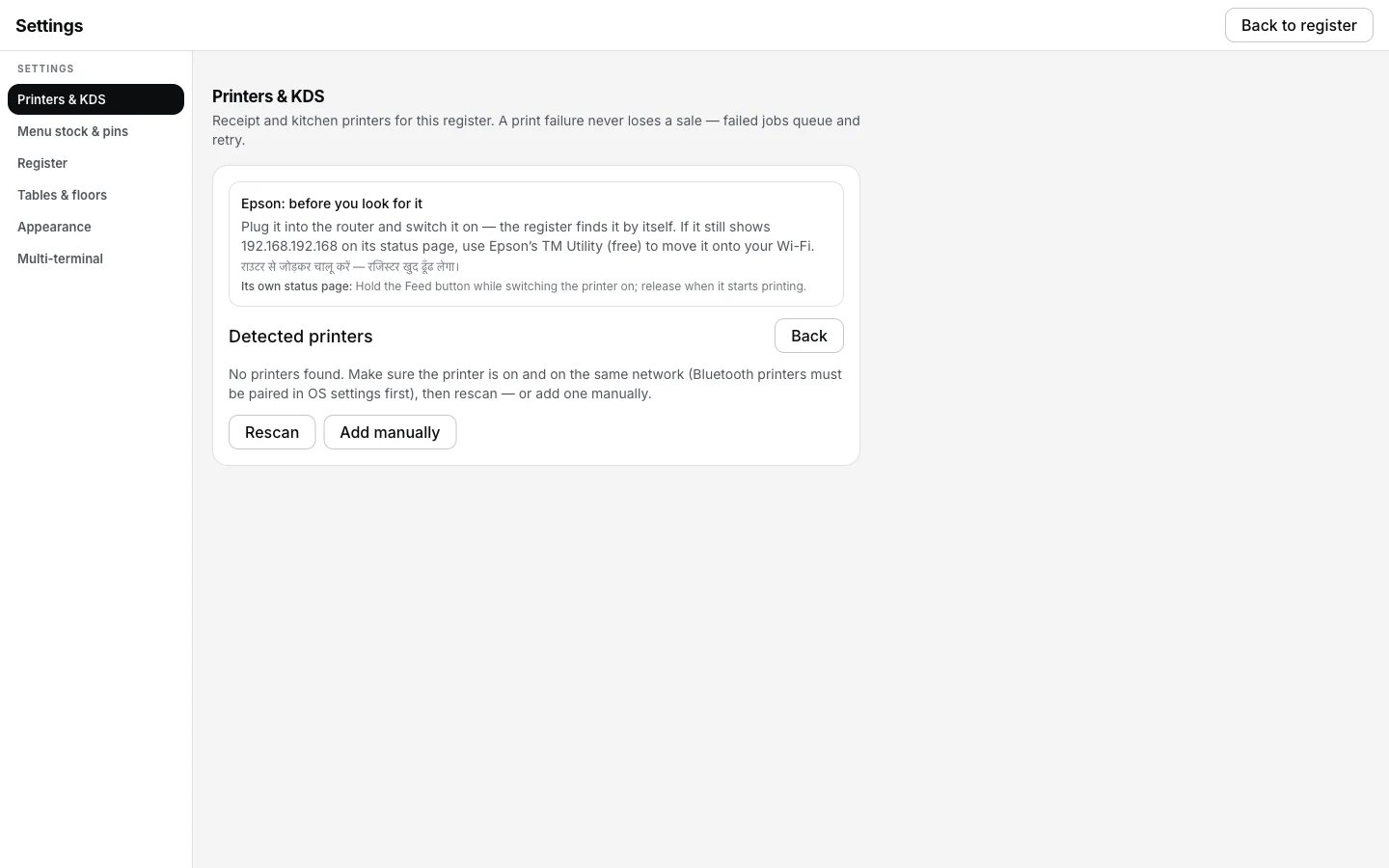
The Epson tip, shown above Detect for the brand you picked.
Pick your printer from the list — or add it by hand
A result carries a plain reason, like "Answered a receipt-printer command — this is a printer" — or, for a device that only answered on the port, "Answering on the receipt-printer port; its network card is made by TP-Link". If yours is missing, open "Other devices on this computer" for everything else the scan saw, or press Add manually and fill in the connection yourself: a host and port 9100 for network, vendor/product id for USB, a serial port path for serial, or Bluetooth once it's paired in your OS settings.
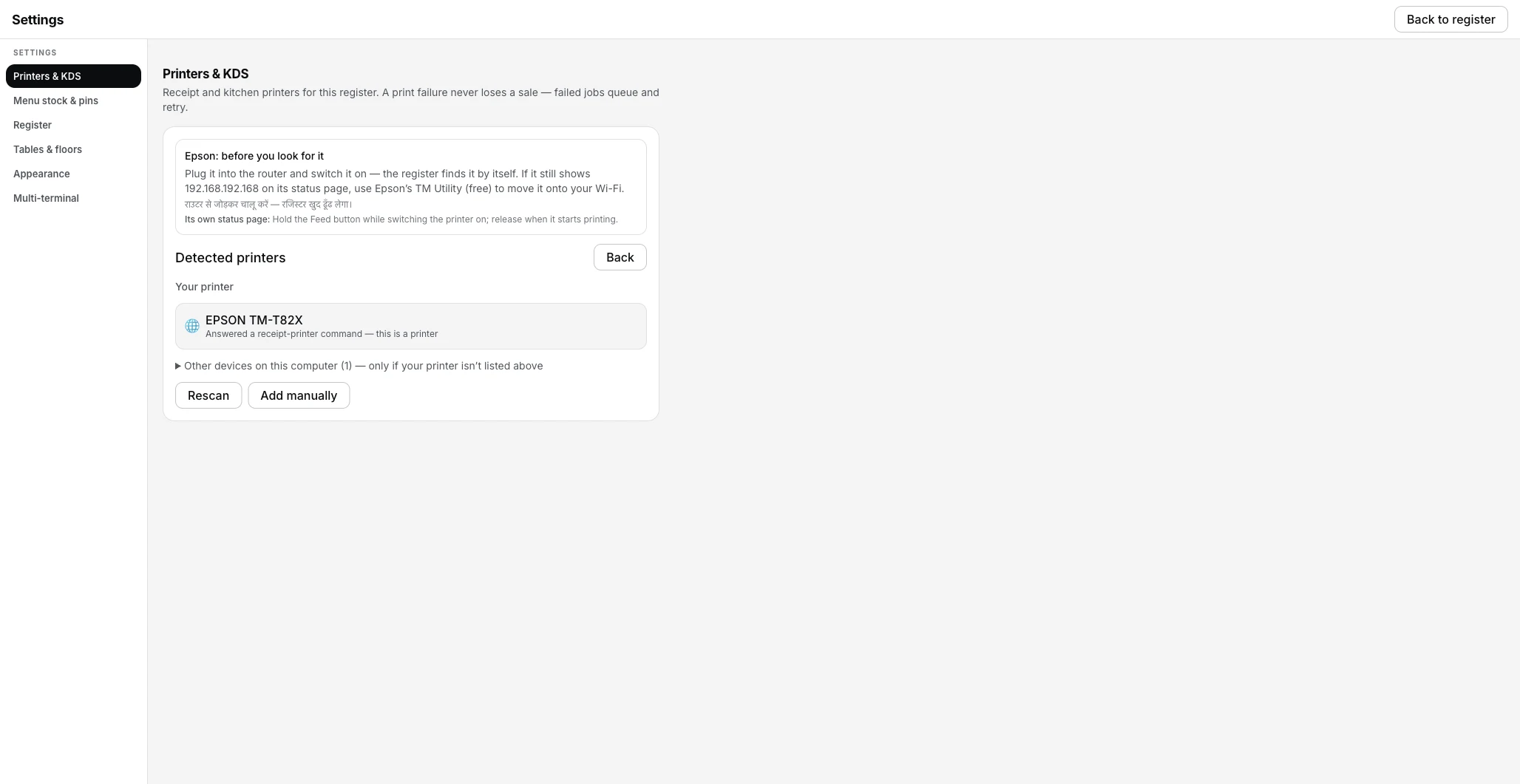
Settings → Printers & KDS → Detect printers — a real printer found on the network.
Adding it by hand instead looks like this — the same form for every entry point:
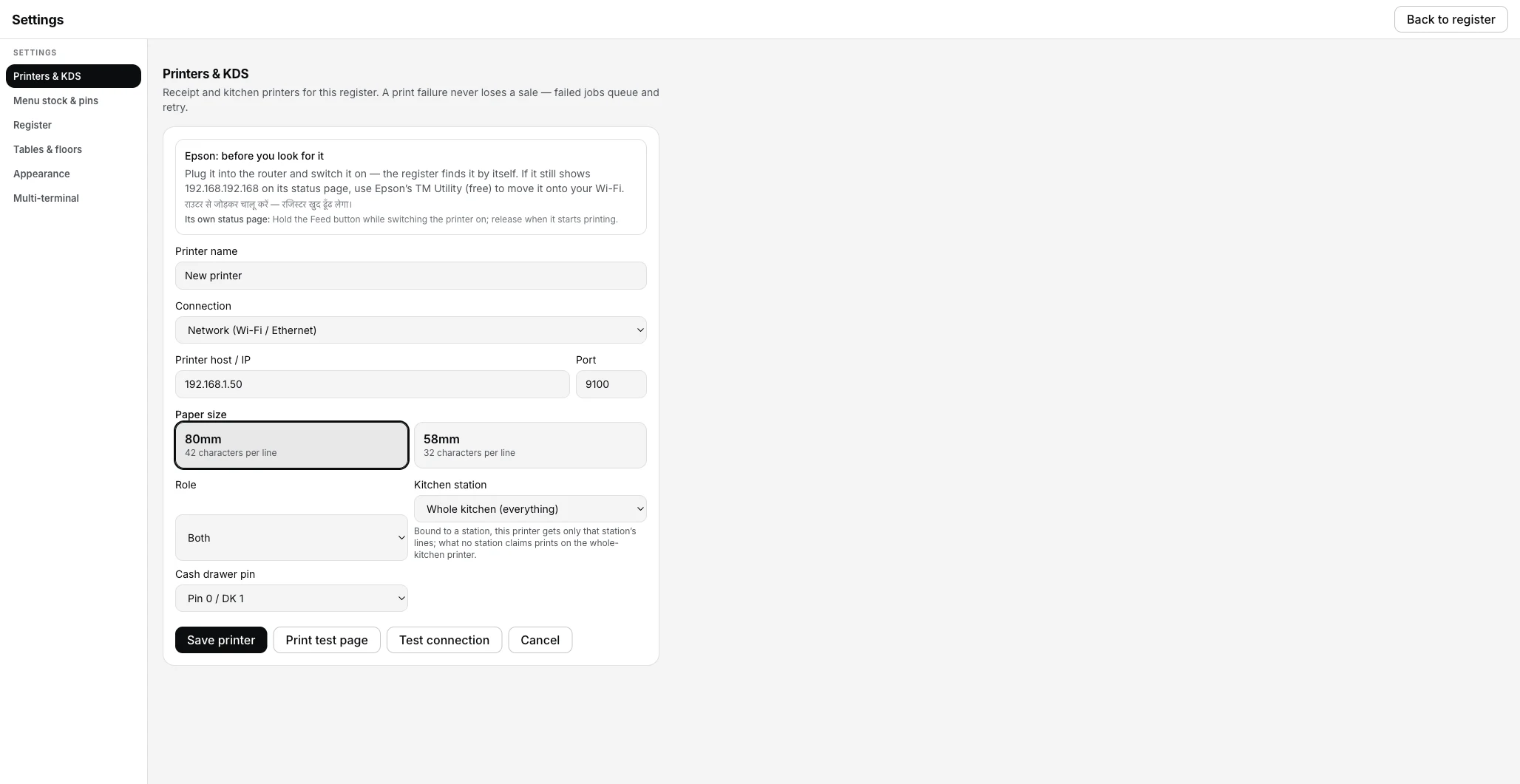
Settings → Printers & KDS → Add manually, on Network (Wi-Fi / Ethernet).
Choose 80mm or 58mm to match your paper roll
Paper size is two big buttons: 80mm (42 characters per line) and 58mm (32 characters per line). This is not a label — it sets how wide the bill is laid out, so pick the roll you actually buy.
Save the printer, then print a test slip
Press Save printer. If you came in through Set up a new printer, the screen changes to "<name> is set up" with a Print a test slip button and a Check printer button — press the slip button and go look at the paper. A printer that prints a slip will print a bill; a blank slip means the roll is in backwards.
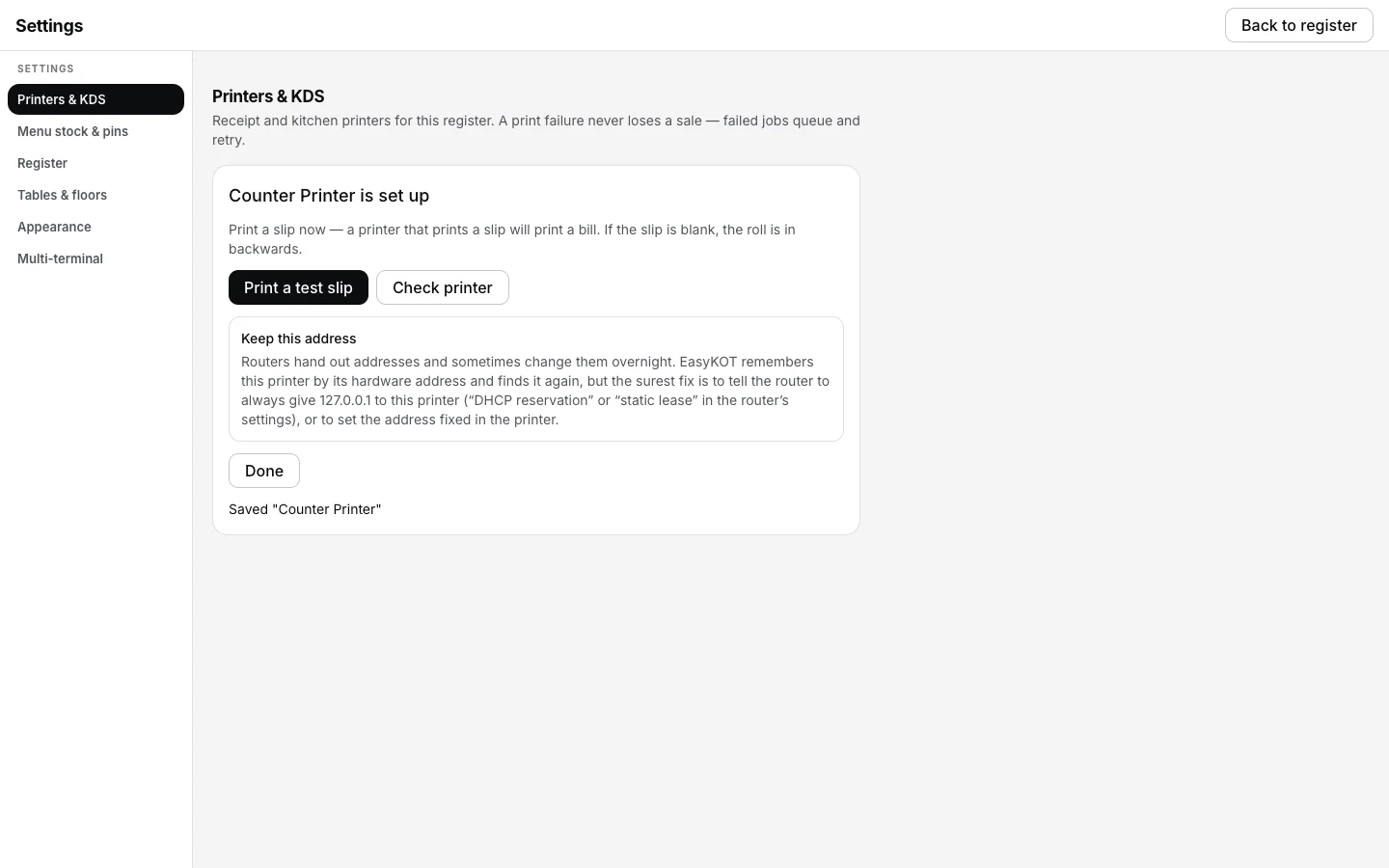
The wizard's finish step, right after Save printer.
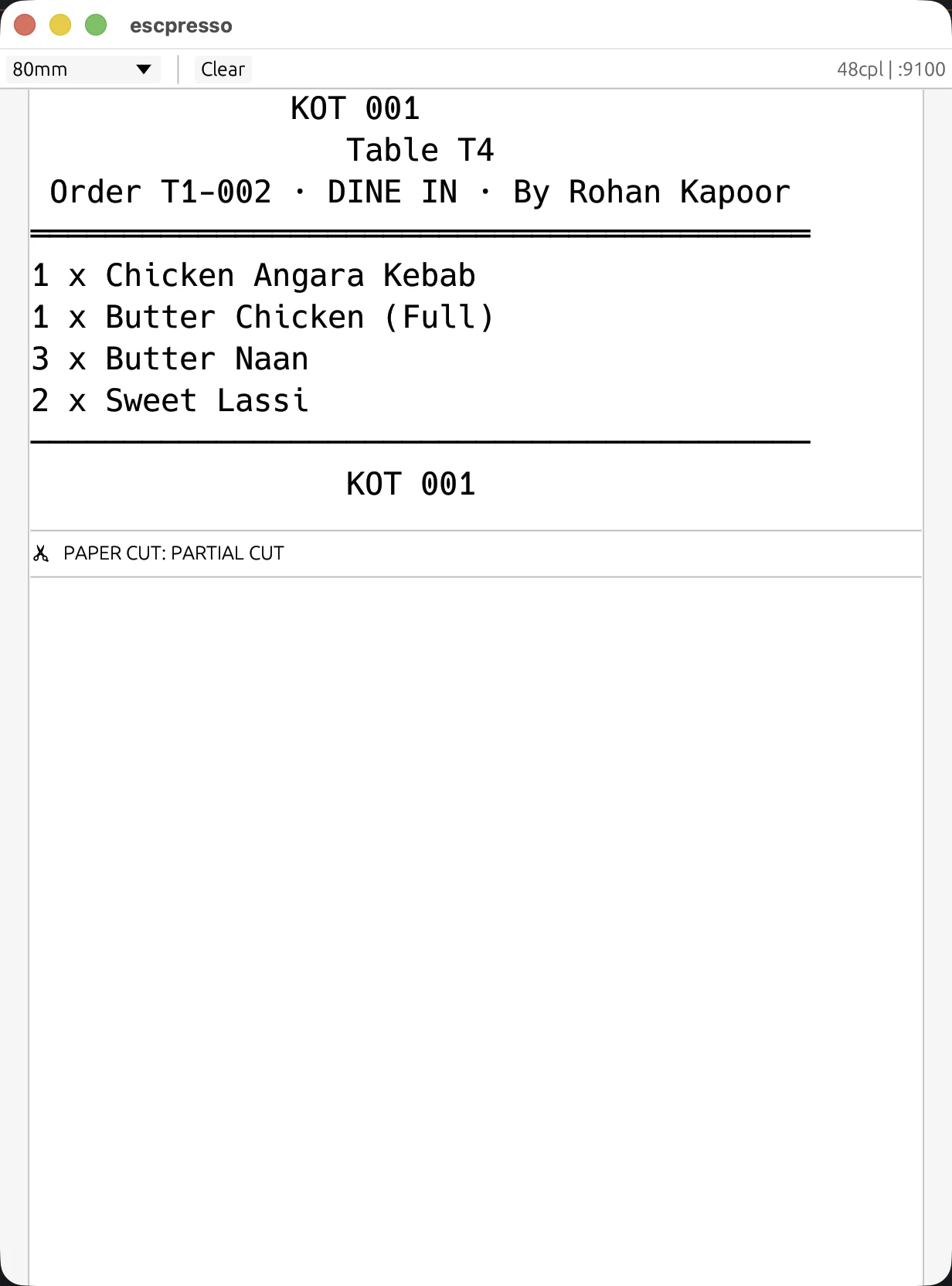
What actually comes off the printer — the register's real print bytes rendered by a virtual ESC/POS printer, not a mockup.
Keep the address it found
The finish screen ends with one piece of address advice: if the printer is still on its brand's factory address, a note says so and points at giving it one on your own network; otherwise it asks you to reserve the address on your router (a "DHCP reservation" or "static lease") so it never has to move again. EasyKOT also remembers the printer by its hardware address and finds it again on its own after a router reshuffle — the reservation is the belt, not the only strap.
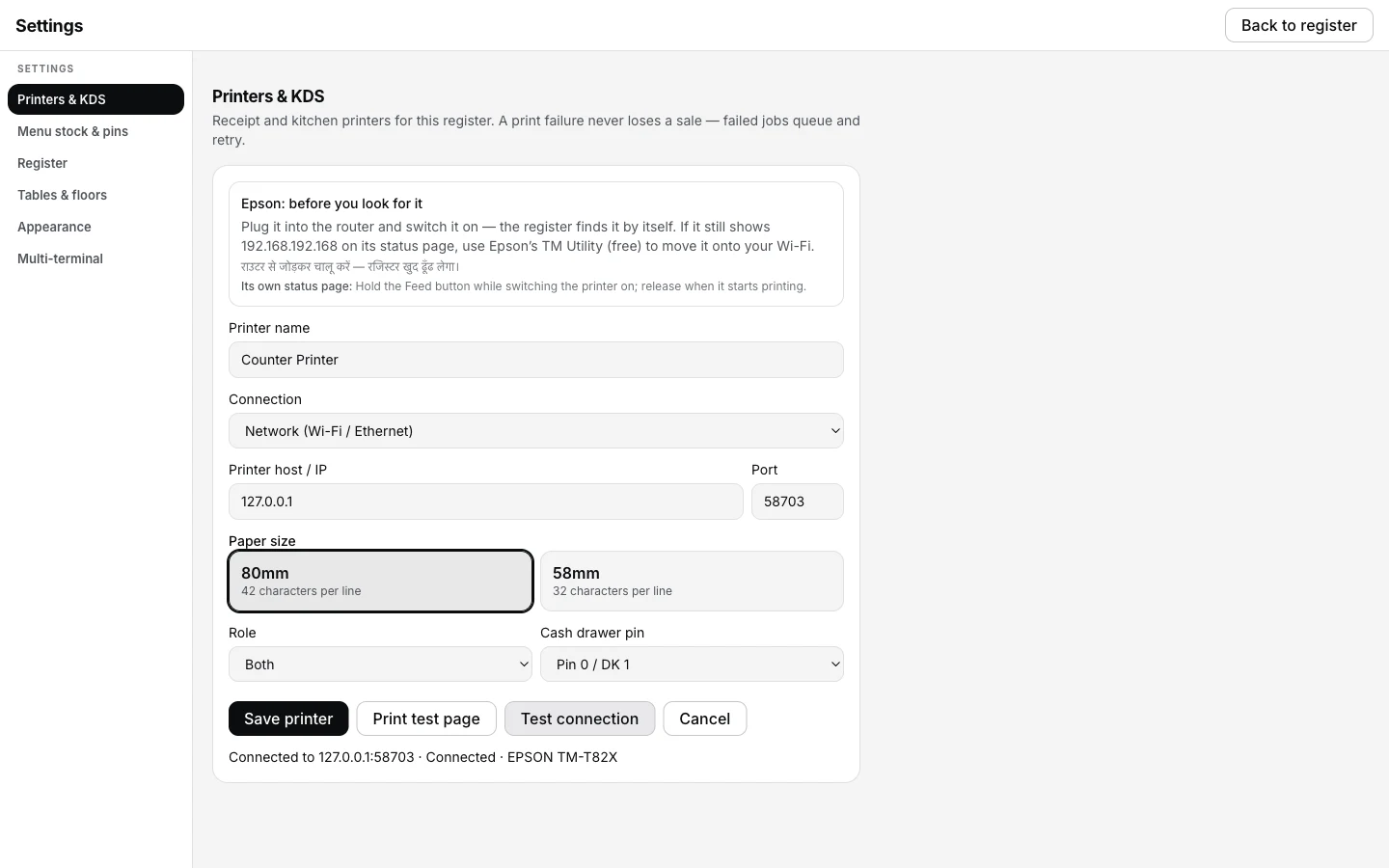
Test connection — a live answer, not a guess.
₹299/month or ₹2,990/year + GST · 3 months free · ₹0 today, no card
Wi-Fi and LAN: the IP address, and why port 9100.
A network printer is the most reliable way to run a counter, because the register can genuinely tell whether it is reachable — it probes it every few seconds and shows you the answer.
- Port 9100 is the receipt-printer port. It is the raw ESC/POS channel every thermal printer listens on, and it is what the Port field is already filled with. Leave it alone unless your printer's own manual says otherwise.
- Let Detect find the IP. The scan walks your whole local network looking for anything answering on 9100, so you rarely need to type an address at all.
- Give the printer a fixed address. If your router hands out a new IP after a power cut, the register will show it offline until it finds the printer again. A static IP — or a DHCP reservation on the router — is a five-minute job that saves a bad evening.
- It finds itself after a router reshuffle, too. After the first good connect, EasyKOT remembers the printer by its hardware address, not just its IP — so a router that hands out a new address overnight is usually a non-event, not a support call. The reservation above is still the surer fix.
- It has to be your own network. Type a public address and EasyKOT refuses it: a printer has to be on the store's own network or on that computer. That is a safety rail, not a bug.
The cable straight into the laptop.
A USB printer is identified by two hex numbers — a vendor id and a product id. You do not have to hunt for them: run Detect printers with the cable plugged in and EasyKOT fills both in for you, because a USB printer says what it is.
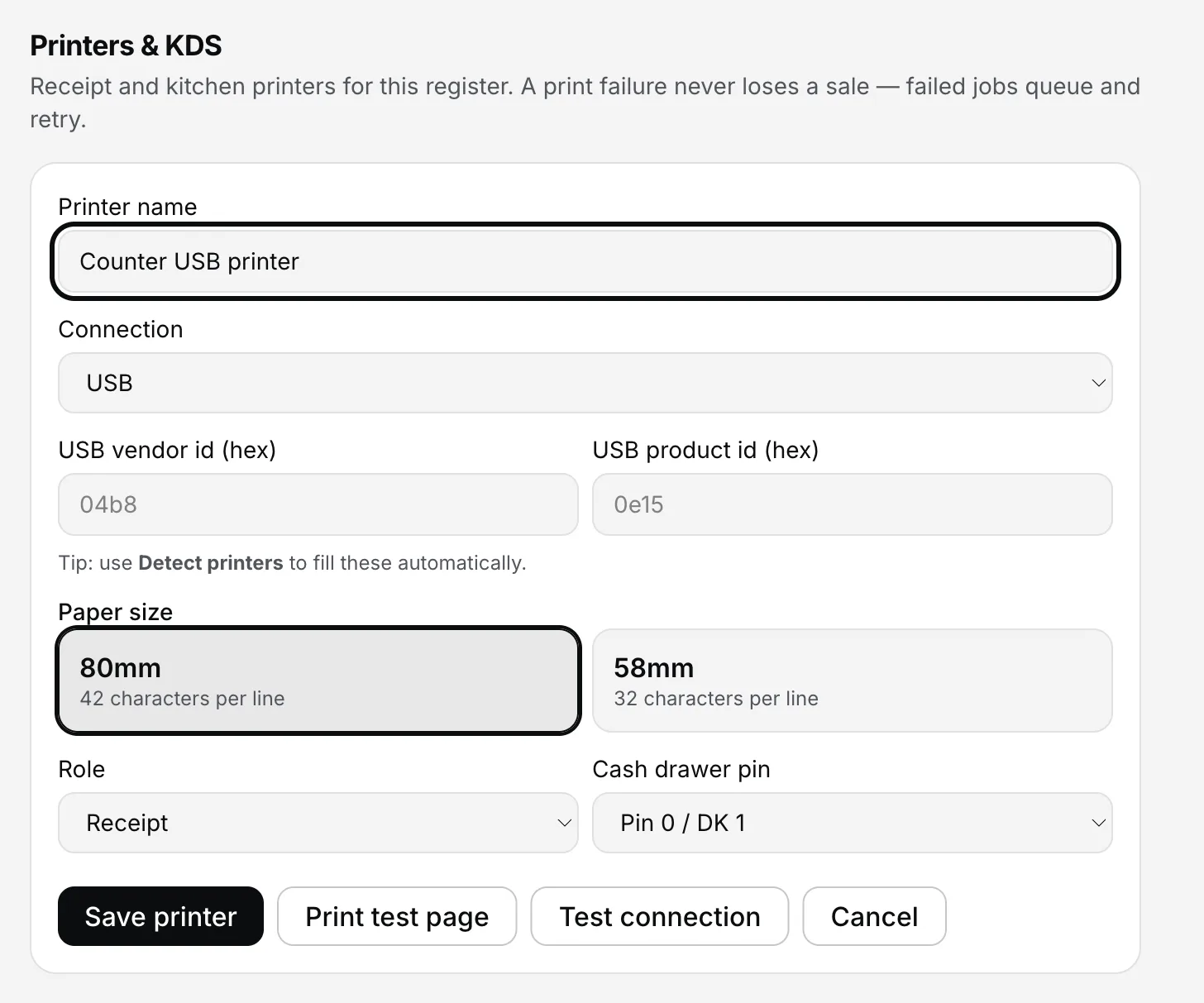
Settings → Printers & KDS → Add manually, on USB.
Test print before service, not during it. A network printer can be probed live, so the register knows when it goes away. A USB, serial or Bluetooth printer that never answers status questions reads Can't verify — will still try to print, which is honest rather than a false green — the test print is the real check, so do it while the shop is empty.
The old RS-232 ones still work — and so does a paired Bluetooth printer.
Both live behind the same choice, Serial / Bluetooth, because a Bluetooth printer paired in your operating system's own Bluetooth settings appears to the laptop as a serial port. Pair it there first; then it shows up here.
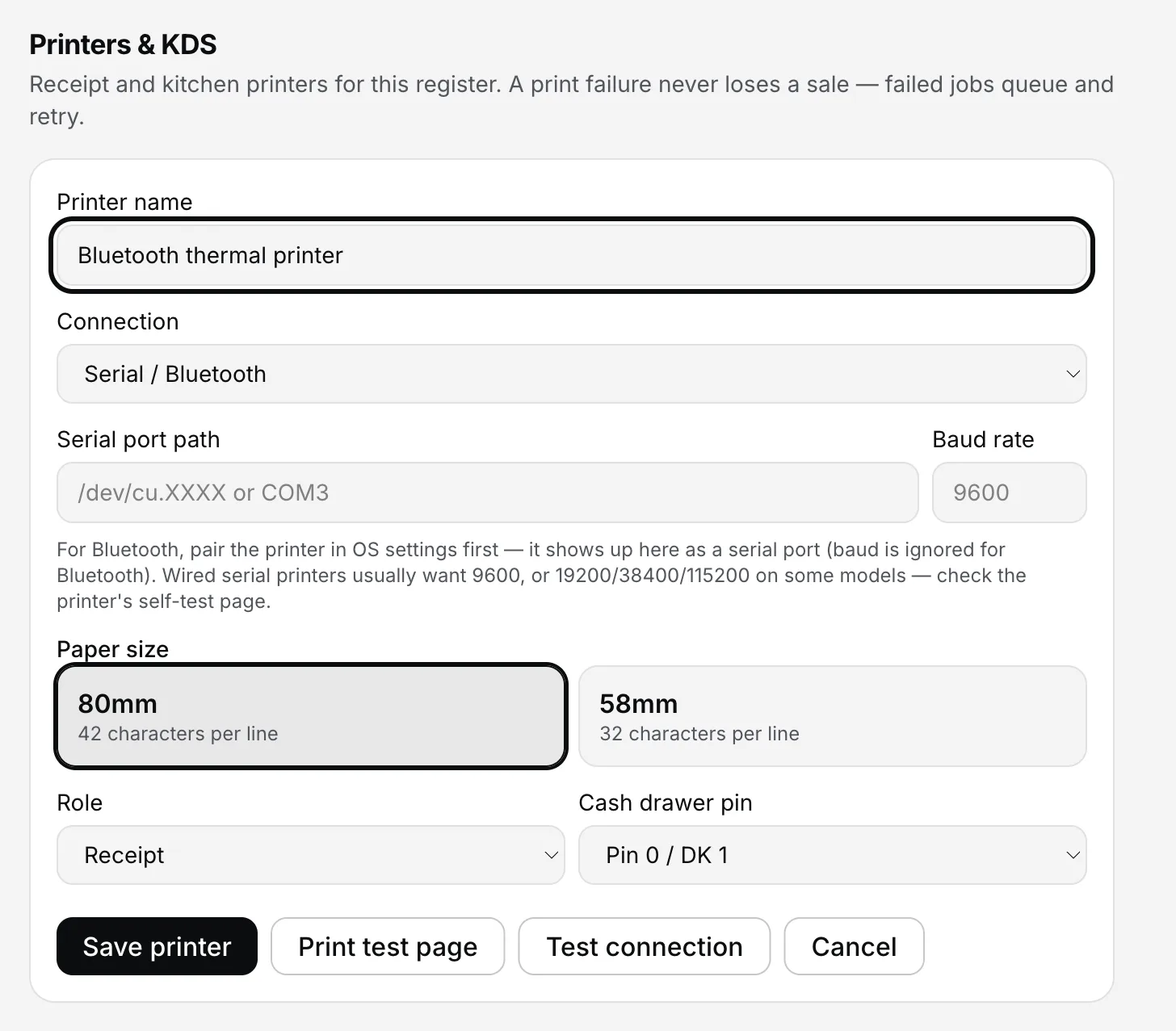
Settings → Printers & KDS → Add manually, on Serial / Bluetooth.
- The port path. On Mac it looks like
/dev/cu.something; on Windows it is a COM number, usually COM3. - Baud rate is for wired serial only. 9600 suits most; some models want 19200, 38400 or 115200 — the printer's self-test slip tells you. For Bluetooth the field is ignored.
- Printing from a phone is a different job. If the printer is meant to live with an Android phone rather than a laptop, read pairing a Bluetooth printer with the Android phone register instead.
System printer — your OS's own print queue.
If the printer is already set up as a normal printer on your computer, EasyKOT can send bills through that queue instead of talking to it directly. On Windows the connection is labelled Windows printer (driver queue — no live status); on Mac and Linux it is System printer (OS driver). Both are the same idea — jobs go through CUPS on Mac/Linux or the Windows spooler on Windows, and both deliver the bytes without being able to read paper-out or cover-open back.
- Type the queue name exactly as your OS shows it. On Windows that is the name in Windows → Printers & scanners; on Mac it is the CUPS queue name in System Settings → Printers.
- Prefer Network or USB when you have the choice. Both of those give the register live status — paper out, cover open, the printer's own name — that a driver queue cannot. System printer is the right call when a printer is already wired into the OS and you would rather not touch its cabling.
58 mm or 80 mm — match the roll you actually buy.
- 80 mm gives you 42 characters a line. Long dish names, portion labels and the GST split all fit without wrapping. This is the counter default.
- 58 mm gives you 32. Cheaper rolls, available in every stationery shop, perfectly fine for a short menu or a takeaway counter — as long as the setting matches.
- Get it wrong and it shows immediately. Set 80 mm on a 58 mm roll and every line runs off the edge. That is exactly what the test slip's digit ruler is for: if the ruler fits the paper, your bills will too.
- Money prints as "Rs.", on purpose. The ₹ sign does not exist in the character sets thermal printers ship with, so a printed bill reads Rs. 480.00. On screen it is still ₹.
Bill printer, KOT printer, or both.
Every saved printer has a Role, and there are three: Both, Receipt, and Kitchen (KOT). One printer on the counter set to Both runs an entire small restaurant.
- Receipt takes the customer bill, the reprints and the cash-drawer kick.
- Kitchen (KOT) takes the kitchen tickets. If you have not set one up, KOTs go to the receipt printer instead — the kitchen never silently misses a ticket.
- Adding a second printer for the kitchen is the natural next step: set up the kitchen KOT printer and the cash drawer.
- Want drinks and food on separate paper, by category? A kitchen printer with stations set up can bind to one corner — see setting up kitchen stations once you have your first two printers running.
- The cash drawer is not a separate device. It plugs into the receipt printer's DK port, and the Cash drawer pin setting on the form picks which pin fires it.
Check printer — the five-question diagnostic.
Every saved printer's row has a Check printer button. It asks the same five questions a support call would — and answers them itself: can the register reach it, is the cover shut, does it speak ESC/POS, is it healthy, and does a test slip come out. Each step ends Pass, Needs attention, Unsupported (this printer just doesn't say), or Not tested.
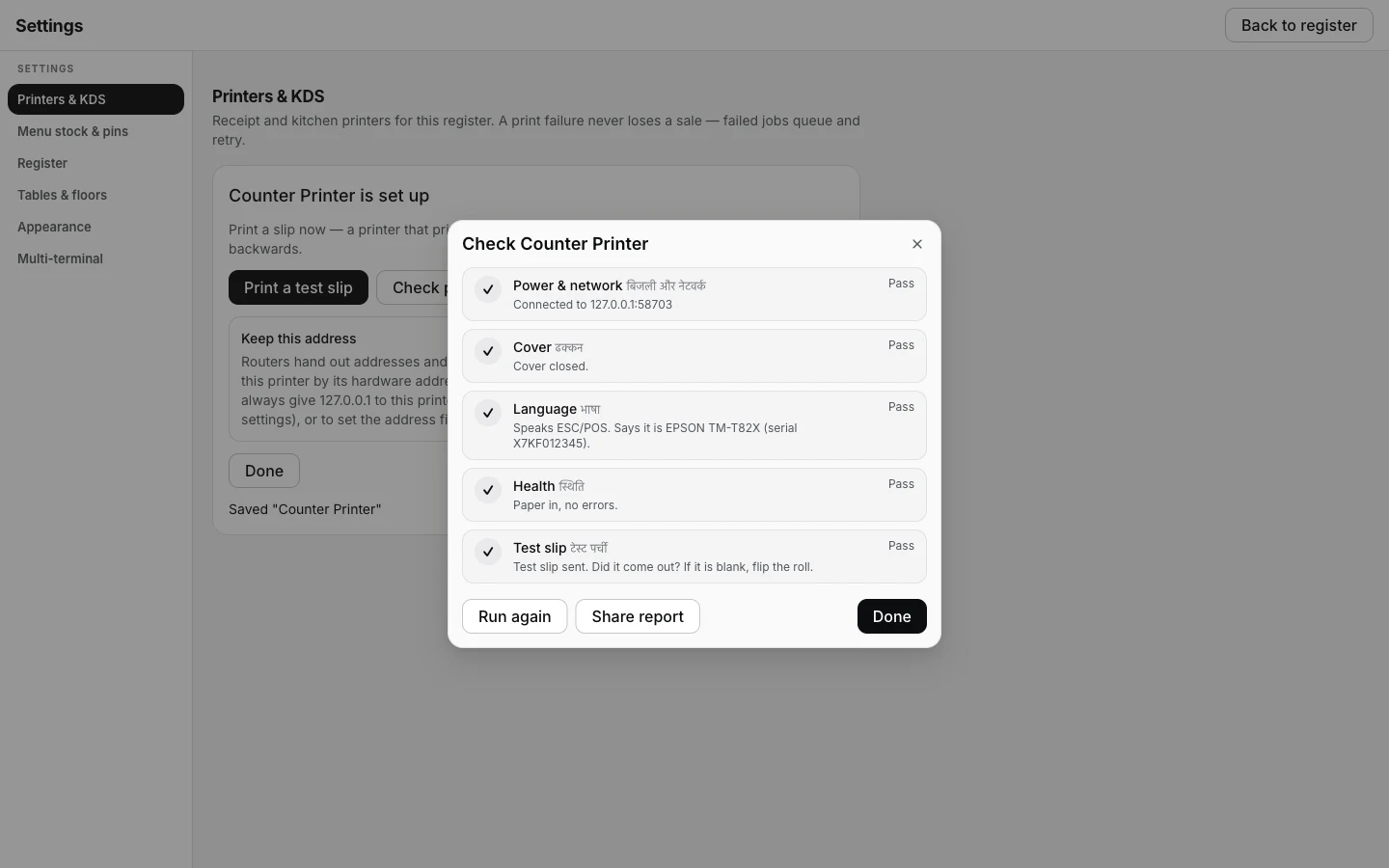
Settings → Printers & KDS → Check printer — a healthy printer, five for five.
- The first thing that needs attention gets its fix. A guided-fix card names the likely cause and the first thing to try, plus a QR code that points a phone straight at the matching easykot.com guide.
- Share report copies plain text — the printer, its connection, the five results and the guide link, ready to paste into WhatsApp. It never includes what was on a ticket or a bill.
- Unsupported is not a failure. Plenty of inexpensive printers never answer status questions at all; they still print every ticket, and the test slip is the real check for them.
Nothing came out of the printer.
Start with the three that cause almost every case: paper loaded the wrong way up, the printer not actually powered, or the laptop on a different network from the printer. Then run Check printer — it will usually name the exact one of those three.
Nothing came out of the printer — the five checks, in order walks each symptom to its fix. The important part first, though: the sale is already saved. EasyKOT writes the bill to the laptop before it queues the print, and a failed ticket retries by itself — 1, 2, 5, 15, 30 and 60 seconds, then every minute, up to twelve tries — before it asks a person for help. You can also read how the register's print queue and reprints work.
Straight answers.
Which thermal printers work with EasyKOT?
How do I find my printer's IP address?
Do I need to install a driver?
Can one printer print both bills and KOTs?
58 mm or 80 mm — which should I buy?
What does Check printer actually do?
Will the printer from my old billing software still work?
Does the printer need the internet?
Next: add a second printer for the kitchen · pair a Bluetooth printer with an Android phone · all EasyKOT guides
Run it 3 months, then pay for it.
Three months free, full product, no card. Made in India, for the counter — built inside a running restaurant.