Owner settings — GST, when your day ends, every card in one place.
The owner dashboard's Settings page carries more than tax: which emails this store sends, what your bills legally need to say, how the register's menu rail is arranged, which corner of the kitchen cooks what, and — the one late-night restaurants actually need — when your trading day ends. Every card saves as you go, nothing here needs a Save button, and nothing you change here ever moves a sale that already happened.
Nine cards · autosaves on every field · nothing here rewrites a past sale
The dashboard's Settings page, card by card, top to bottom.
GST — charge tax, or don't
The first card is a single switch: "Whether this store charges GST. Turn it off if you are not GST-registered — items ring up at their menu price and bills print with no tax line." On, the toggle reads "Charging GST at each item's slab"; off, it reads "Not charging GST — bills show no tax." Deliberately not retroactive: the note underneath says "Applies to orders started after every register's next sync. Bills already rung up keep the tax they charged, so past receipts and reports still add up" — flip it mid-service and today's bills so far keep whatever they were already charging.
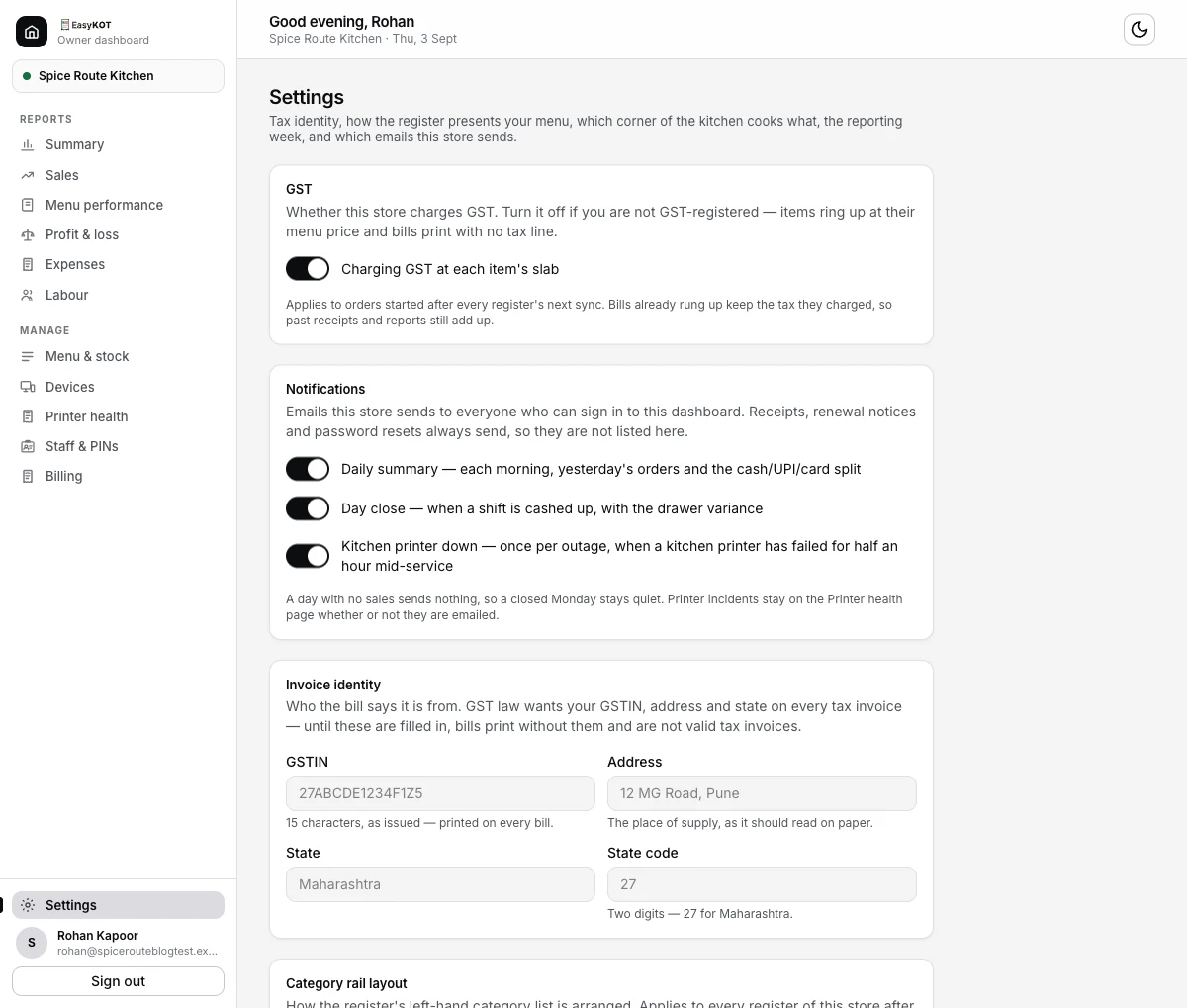
Steps 1–2 — GST and Notifications, the first two cards on the Settings page.
Notifications — pick which emails this store sends
The card opens with "Emails this store sends to everyone who can sign in to this dashboard. Receipts, renewal notices and password resets always send, so they are not listed here" — those three are never optional. Three switches follow: Daily summary ("each morning, yesterday's orders and the cash/UPI/card split"), Day close ("when a shift is cashed up, with the drawer variance"), and Kitchen printer down ("once per outage, when a kitchen printer has failed for half an hour mid-service"). A footer note adds two things worth knowing before you touch either: "A day with no sales sends nothing, so a closed Monday stays quiet," and "Printer incidents stay on the Printer health page whether or not they are emailed" — turning the alert off only stops the email, not the record.
Where an outage still shows even with the email off: the dashboard's own Printer health page — a clean week reads exactly like this.
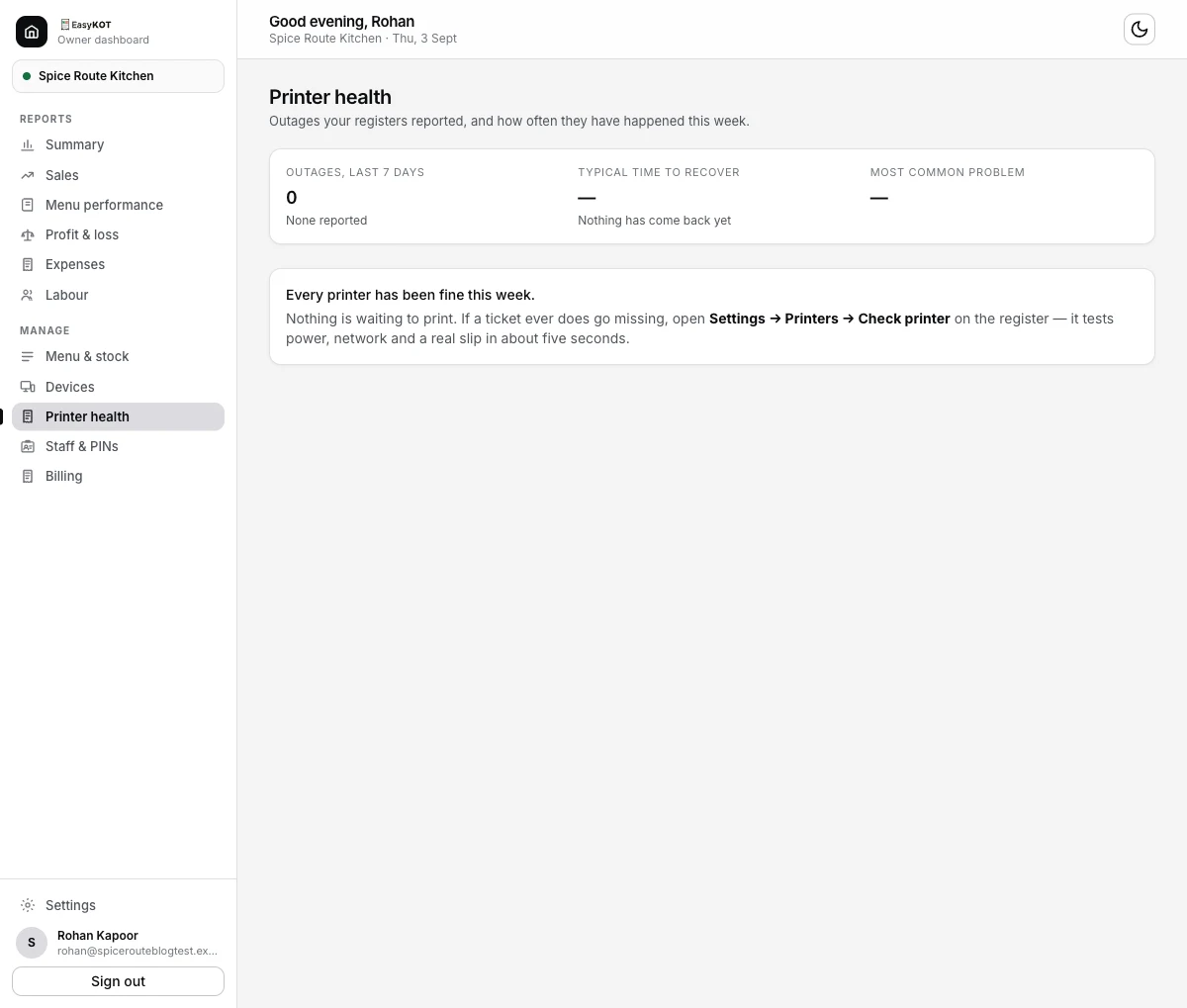
Printer health, reached from the sidebar — where an outage stays on record whether or not the Kitchen printer down email was on.
Invoice identity — make your bills valid tax invoices
"Who the bill says it is from. GST law wants your GSTIN, address and state on every tax invoice — until these are filled in, bills print without them and are not valid tax invoices." Four fields: GSTIN ("15 characters, as issued — printed on every bill"), Address ("The place of supply, as it should read on paper"), State, and State code ("Two digits — 27 for Maharashtra"). Each one saves the moment you tab out of it — there is nothing to press. A store that skips this card is not blocked from selling; it just prints bills that legally aren't tax invoices yet, which is worth fixing before your first real GST filing rather than after.
Category rail layout — how the register's menu list reads
"How the register's left-hand category list is arranged. Applies to every register of this store after its next menu sync." Three options, each with a small preview of what the rail will actually look like: Flat list ("Every category in one list, counts right-aligned. The default — fine up to a dozen categories"), Grouped ("Quiet section headers group sub-categories under their parent's name. The rail reads by cuisine, not by scroll"), and Two-tier ("Parent categories expand into sub-categories on tap. For big menus where one category is really a second menu"). A menu of a dozen categories rarely needs to leave Flat list; a menu with real parent/child depth — Tandoor with Tandoori and Kebabs & Tikka under it, as the sample menu has — is what Grouped and Two-tier exist for.
Kitchen stations — split the kitchen across printers
"Split a table's order across the corners that cook it — the tandoor gets the kebabs, the bar gets the drinks. Each register decides which printer a station reaches, in Settings → Printers." This card is a whole feature on its own — naming stations, ticking the categories each one cooks, and choosing a backup for when a station's printer fails — covered start to finish in the kitchen stations guide linked below. Skip it entirely if one kitchen printer already covers your whole pass; nothing here is required.
Set up kitchen stations — the full guide →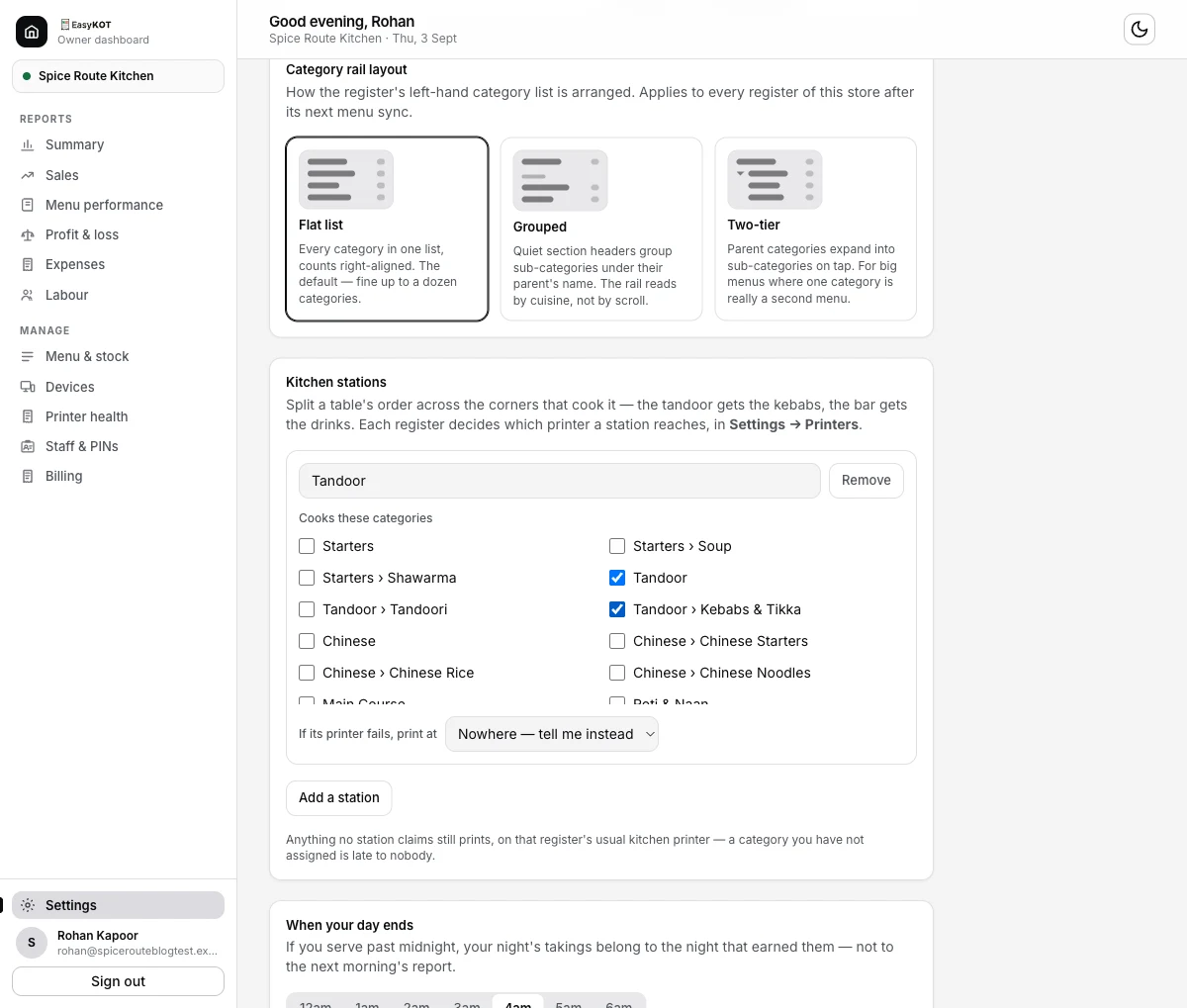
Step 5 — Kitchen stations, one card down from Category rail layout. Full walkthrough in the linked guide.
When your day ends — set your trading day
"If you serve past midnight, your night's takings belong to the night that earned them — not to the next morning's report." A row of times from 12am through 6am, default 4am — pick one and the card tells you exactly what it means: "Your day runs 4am to 3:59am. A sale rung at 2am on Tuesday counts towards Monday." It's not just a reporting label: the same note explains "This also decides when the register starts its bill numbers again and when the kitchen display clears the night's tickets, so all three agree on the same night." Changing it later is safe — "Changing it re-dates reports you have already run — no sale moves, only which day it is counted on."
Reporting week — pick the day your week starts
"The day each week starts on. Used by This week and Last week on every report." A row of weekday buttons, Sunday through Saturday, with a live summary underneath — "Weeks run Monday to Sunday," for instance, once you've picked one. A store that counts stock on a particular night gets to make that night the seam between reporting weeks instead of a count stranded mid-week. As with the trading day, the change is non-destructive: "Changing this re-slices reports you have already run — no sale moves, only which week it is counted in." One exception: a store already reporting on a fiscal calendar has this locked to the fiscal year's own start date, and the card says so rather than letting you pick a second, conflicting boundary.
Open the dashboard from the register
A short reference card: "On the desktop POS, go to Settings → Open admin dashboard. It opens this URL in the system browser." Underneath, the dashboard's own address is printed as a clickable link — useful the first time someone at the counter needs to reach these settings without hunting for the URL themselves.
Sync the menu after edits
The last card, and the one worth remembering after every menu change: registers keep the last downloaded menu offline, and when they are back online someone taps the small sync arrow beside the Online badge — its label reads "Sync menu now" — to pull your changes. A price change or a new dish made here in the dashboard doesn't reach a till on its own — someone at that register has to be online and tap that arrow before it shows up on the floor.
Straight answers.
Is there a Save button anywhere on this page?
If I turn GST off mid-shift, does it rewrite the bills already printed today?
I turned off the Kitchen printer down email — do I lose the record of the outage?
What actually happens if I leave Invoice identity blank?
Does Category rail layout change the register instantly?
Do When your day ends and Reporting week ever move a sale to a different total?
Two cards worth their own guide.
Kitchen stations
Split a fired round into one printed ticket per corner of the kitchen.
Set up stations →Your first GST bill
What the GST toggle and Invoice identity add up to on a real printed receipt.
See the GST guide →Reports & the daily email
Where the reporting week and the trading day actually show up — the dashboard's six reports.
See the reports guide →Every guide in this cluster is listed on the guides hub.
Run it 3 months, then pay for it.
Three months free, full product, no card. Made in India, for the counter — built inside a running restaurant.