USB printer not found
The cable is in, the printer's light is on, and Detect shows nothing. Suspect the cable first — a large share of USB cables sold with phones and chargers carry power and no data lines at all, and they look identical. After that, on Windows, the usual culprit is a driver holding the port.
Whatever the printer does, the sale is already saved — the register writes the bill to its own database first and queues the paper second. The full nine-symptom checklist covers the rest.
Four suspects, in the order they actually occur.
- A charge-only cable. Cables that carry power but no data are everywhere and are indistinguishable by eye. The printer lights up, so it looks connected, and the computer never sees a device at all.
- A driver has claimed the port. On Windows, a vendor driver or an OS print queue can hold the device exclusively, and the register then cannot open it. Device Manager showing a warning triangle is the tell.
- A counterfeit serial chip. Many cheap printers use a USB-to-serial bridge, and fake chips are refused by the genuine driver. They appear briefly and then fail with a code 10 in Device Manager.
- The printer is not on, or the port is not powered. Front-panel ports on old desktop machines are often unpowered or loose. Try a port on the back of the machine, directly rather than through a hub.
Do this first.
Swap the cable for one you know carries data
Use the cable the printer came with, or a cable you have used to move files. Plug into a port on the back of the computer rather than a hub or a keyboard port. This alone settles a large share of cases and costs thirty seconds.
On Windows, look in Device Manager
Right-click Start → Device Manager, and watch the list while you unplug and replug the printer. Something should appear and disappear. A device with a yellow warning triangle is a driver problem — open it, read the error, and try uninstalling that driver and replugging so Windows installs its own. On a Mac, System Information → USB is the same check.
Rescan with Detect printers
Settings → Printers & KDS → Detect printers checks this computer's USB and Bluetooth ports first, before it touches the network, so a USB printer shows up in the first second of the scan. If your printer is not in the top list, open “Other devices on this computer” underneath — a printer that does not identify itself as a printer is ranked low rather than hidden.
On Windows, fall back to the driver queue
If Windows can see and print to the printer but the register cannot claim it directly, add it in EasyKOT as a Windows printer instead and pick its queue by name. The row is labelled “Windows printer (driver queue — no live status)” because that path can print but cannot report paper or cover state — an honest trade that gets you billing tonight.
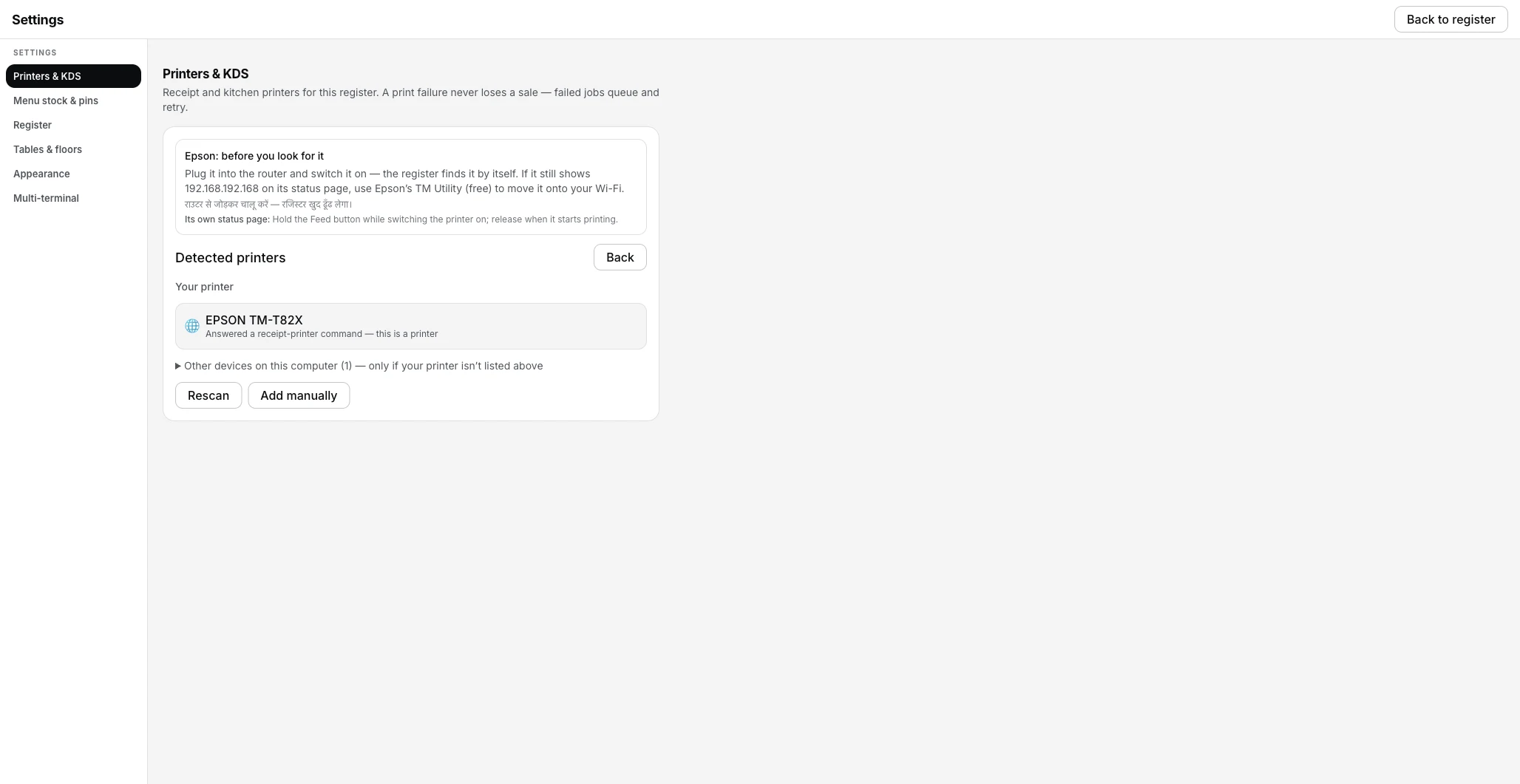
This scan found a network printer under Your printer; a USB device that doesn't identify itself as a printer is ranked lower, under Other devices on this computer — open that row if yours isn't in the main list.
What the printer's row says.
Every printer you have added has a row in Settings → Printers & KDS, and the row carries its own status in words rather than a green dot. These are the exact words for this one.
- While it is wrong: “Offline” once two checks in a row find nothing at that USB device, with a fold-out “How to fix this” under the row naming the cable, the driver and the bridge chip.
- Once it is fixed: “Connected” — or “Can't verify — will still try to print” on a printer that accepts jobs but answers no status questions, which is normal for budget USB models and is not a fault.
A printer added through the Windows driver queue always reads “Can't verify — will still try to print”, because the spooler passes bytes through and reports nothing back. That is the label being accurate, not the printer being unwell.
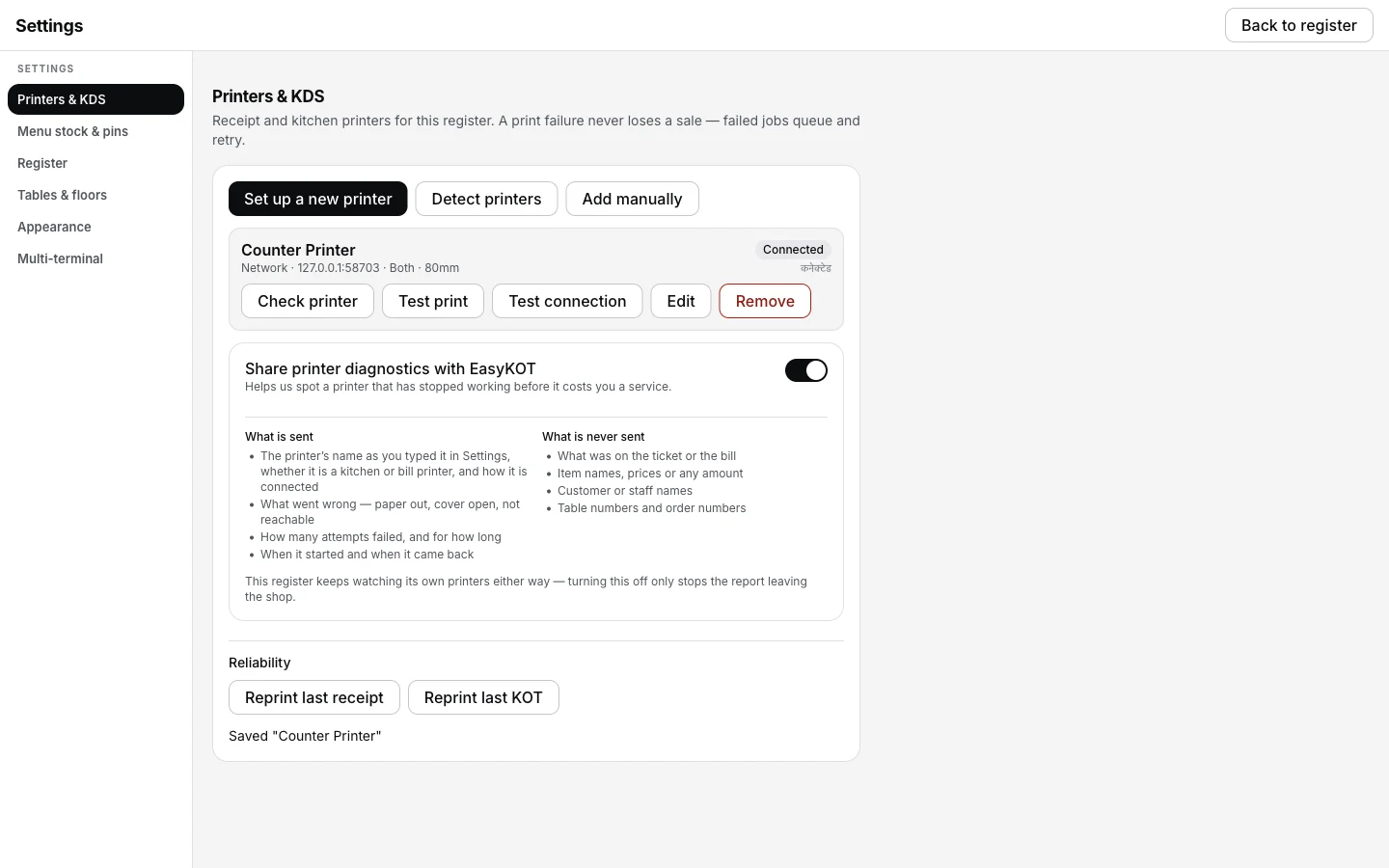
Once the cable and the port are sorted, the row reads Connected — or, on a budget USB model, Can't verify, which is not a fault.
Printing what was missed.
- Tickets wait in the queue while the port is missing. Settings → Printers & KDS lists them with what they are waiting on. Plug the printer in and they print in order.
- Send them to another printer to get through service. Send to <another printer> on the queue row moves a ticket to anything else that is connected — a network printer in the kitchen, for instance — so the food keeps moving while you find a cable.
- Reprint the last bill once it is back. Settings → Printers & KDS has Reprint last receipt and Reprint last KOT; an older bill comes back from Orders with Reprint receipt, stamped DUPLICATE and keeping its original invoice number.
USB printer not found — the questions that follow.
Can I plug a USB printer into a phone or tablet?
How do I know if a USB cable carries data?
Do I need to install a driver for a USB thermal printer?
It worked and now it does not, after a Windows update.
If that was not it.
Bluetooth printer paired but silent
The COM port Windows never made, and the phone still holding the pairing.
Fix Bluetooth →Nothing comes out at all
The nine-symptom checklist, in the order that solves the most cases fastest.
Work through the checks →Connect a thermal printer
Network, USB and serial side by side — every field, with screenshots.
Set the printer up →Every printer guide is listed on the guides hub.
Run it 3 months, then pay for it.
Three months free, full product, no card. Made in India, for the counter — built inside a running restaurant.