Printer not printing? Work through these in order.
Nine times out of ten it is the paper, the power, or the connection — in that order. Scratch the paper with a fingernail: no black mark means the roll is in upside down. Then check the printer is on and on the same network. Your bill is already saved, and the print retries by itself.
Queue + auto-retry + manual reprint · nothing here needs the internet
The sale is not lost. Breathe, then fix the printer.
EasyKOT settles the bill into the laptop's own database before it queues anything to print. A printer that is off, out of paper, or on the wrong network cannot cost you a sale — it can only delay a piece of paper.
- Every ticket is a durable job, stored on the laptop until it prints. Closing the app or losing power does not lose it.
- It retries by itself — after 1 second, then 2, 5, 15, 30 and 60, then every minute, up to twelve attempts. Load paper and walk away; the queue drains on its own. After twelve the job stops and asks for you rather than retrying for ever, on a row that offers Retry now, sending it to another printer, or discarding it.
- The register says so out loud. The status rail shows No printer · N waiting, and Settings shows an N failed pill under Reliability. That is the counter telling you a ticket is owed — not a sale going missing.
- You can always print it by hand — Reprint last receipt and Reprint last KOT sit right there, and a settled check's Bill button becomes Reprint. If a print fails while you are settling, the register offers four choices on the spot — Retry now, Fix printer, Send to another printer, and Skip — keep it for reprint.
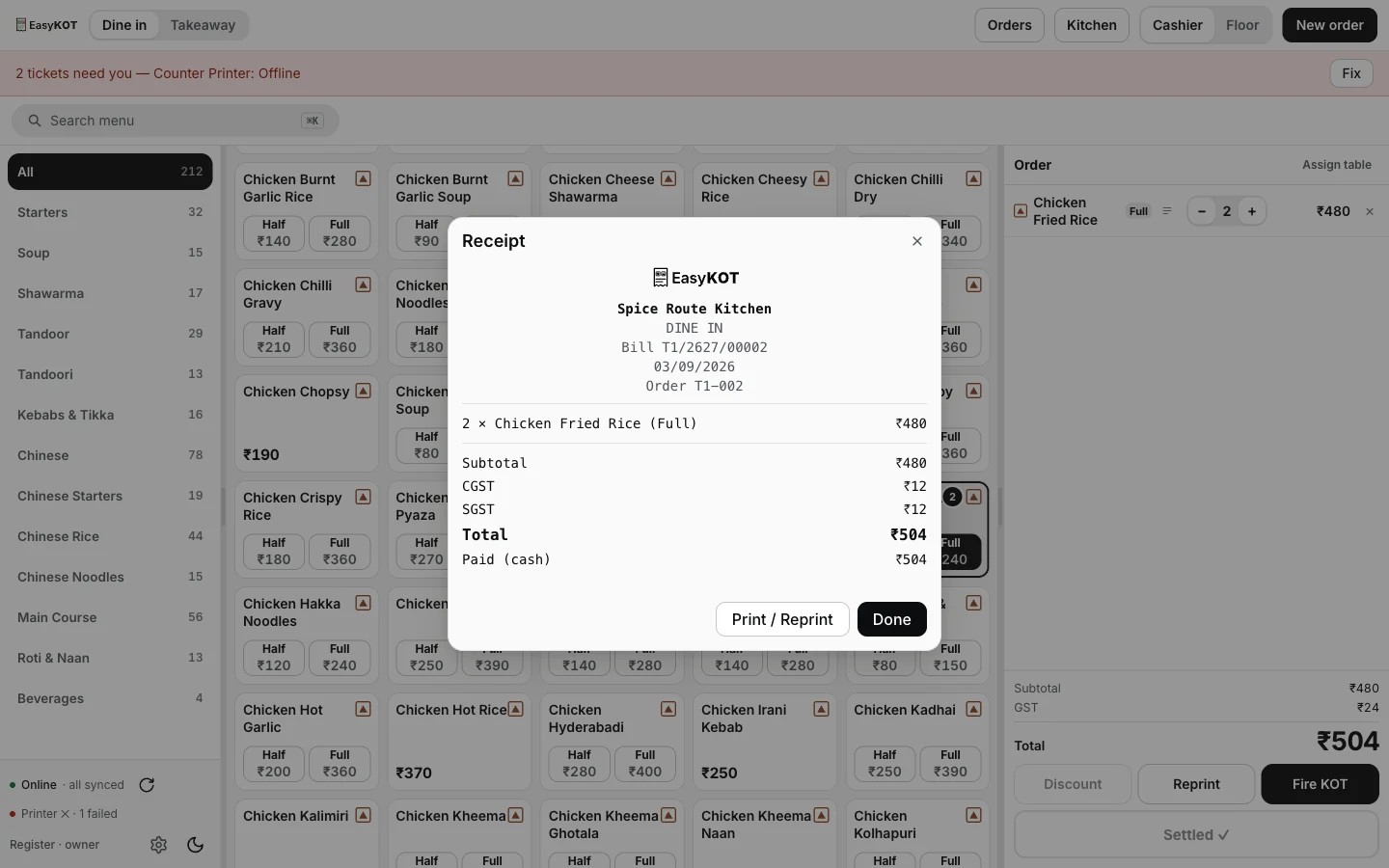
The register's own attention bar during an outage — the sale went through, two tickets are waiting for paper.
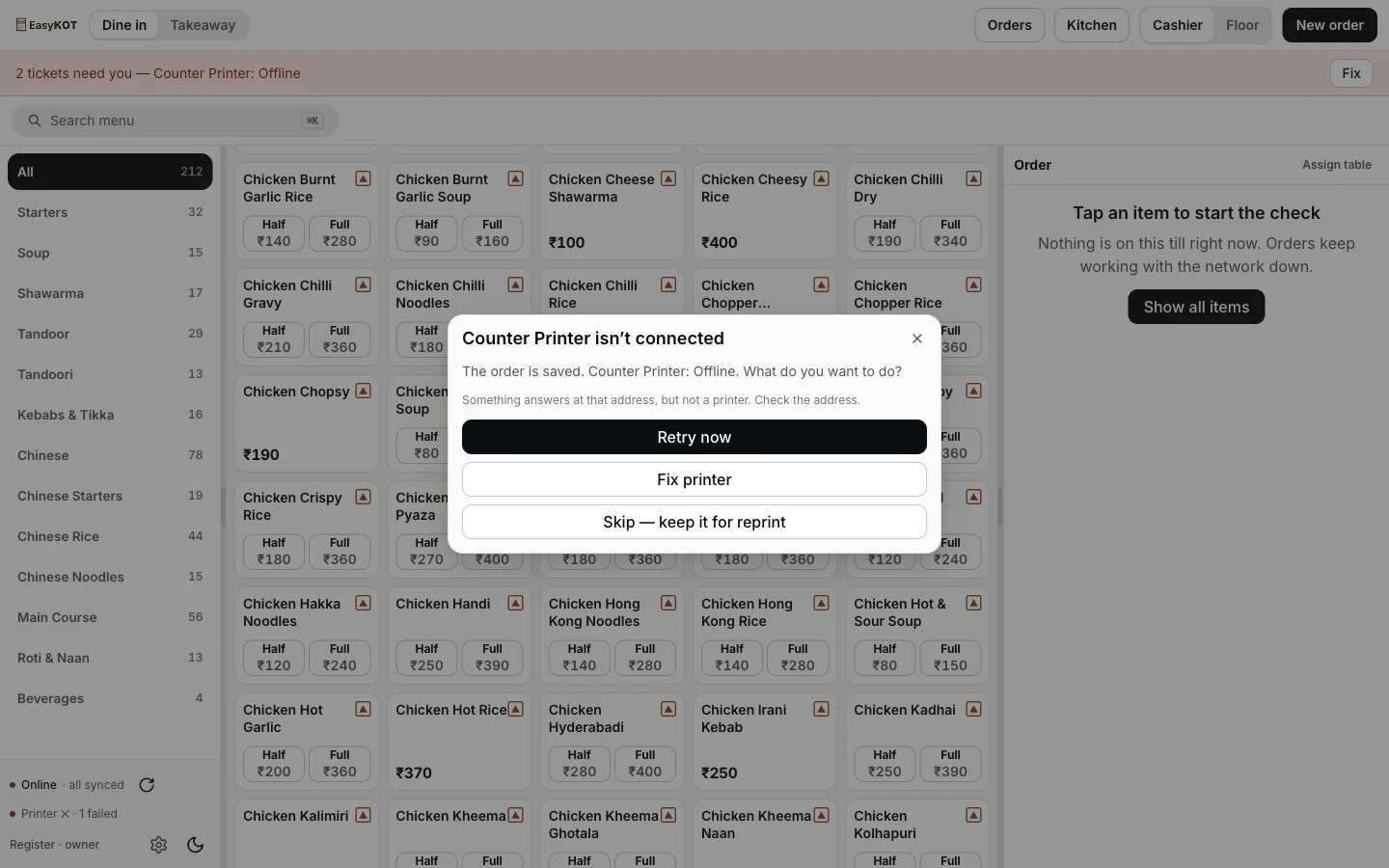
The four-choice dialog that opens the instant a print fails — never a bare error.
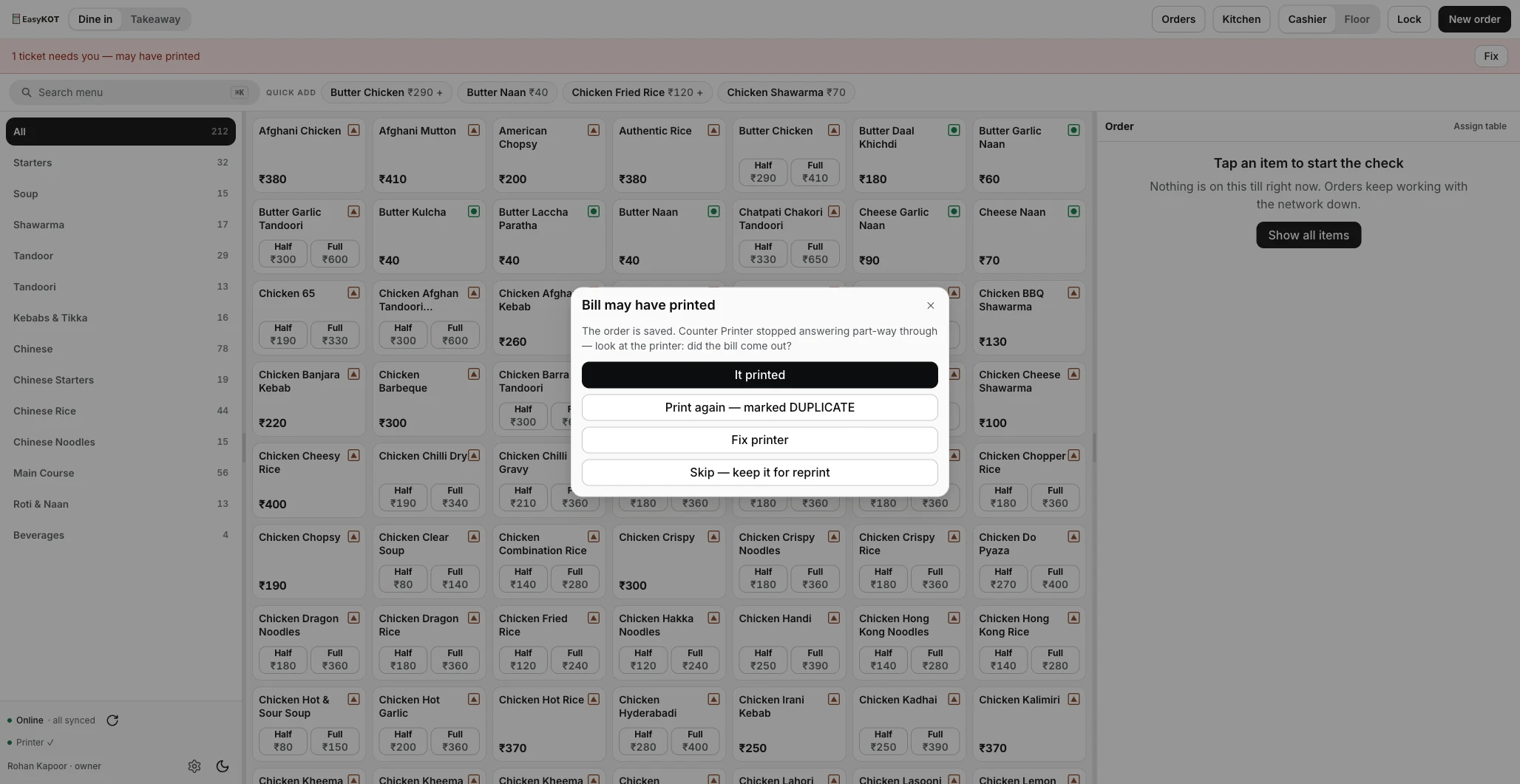
A different question when the printer stopped mid-job: did it come out? Retrying blindly here could print the bill twice, so EasyKOT asks instead of guessing.
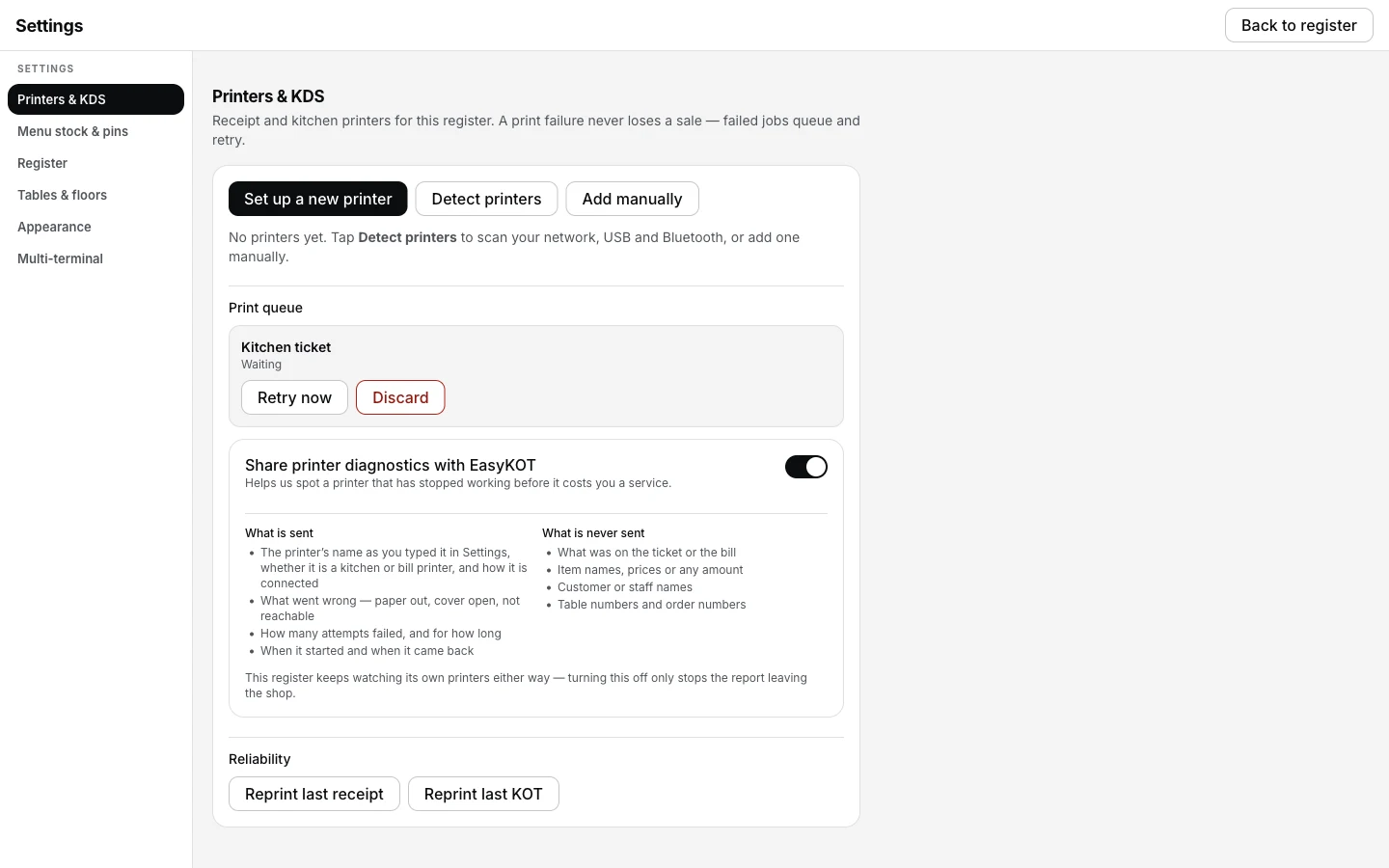
Settings → Printers & KDS → Print queue — every job that isn't done yet, with a way out for each one.
Find yours, then work down the list.
1. Nothing comes out at all
No noise, no paper movement. This is a power or connection problem far more often than a software one.
- Check the printer is actually switched on. Many thermal printers have a power light that stays lit from the adapter even when the switch is off, so the light is not the check — the switch is.
- Click the paper cover fully shut. Most printers refuse to print with the lid a millimetre open, and say nothing about it.
- Run the printer's own self-test. Hold the feed button while switching the printer on. If a self-test slip prints, the printer and its paper are fine and the problem is the connection.
- Press Test connection in Settings → Printers & KDS. A network printer answers with something like "Connected to 192.168.1.50:9100". If it does not, the register cannot reach it.
- Check the laptop and the printer are on the same Wi-Fi. A laptop that hopped onto a guest network or a mobile hotspot is the classic cause, and it takes every printer in the building out at once.
2. Blank paper comes out
The printer is working perfectly — it is the roll that is wrong way up. Thermal paper is coated on one side only, and heat on the uncoated side produces nothing at all.
- Scratch the paper firmly with a fingernail or a coin. A dark line appears on the printable side.
- Reload the roll so that printable side faces the print head — on most counter-top printers the paper comes off the underside of the roll, not over the top.
- Press Test print again.
What the register can and cannot see here: an empty roll it can — a printer that reports its paper sensor shows Paper out on its row and printing pauses until you reload. A roll loaded the wrong way up it cannot, because no printer reports that, so the row keeps saying Connected and the slip in your hand is the only check. The full page on blank slips has the scratch test in pictures.
3. The print is faint, or half the line is missing
Faint everywhere is usually old or cheap paper, or a printer running its density low. A clean band missing down the slip is the print head.
- Try a fresh roll first. Thermal paper fades with age, heat and sunlight — a roll that sat on a windowsill all summer prints grey.
- Clean the print head with a cotton bud and isopropyl alcohol, printer off and cooled. Dust and paper fibre are the usual culprits.
- If a vertical strip is permanently blank, the head has dead dots and the printer needs servicing — no software setting recovers that.
4. Garbage characters and random symbols
The printer is receiving data but reading it in the wrong language or at the wrong speed. Nearly always a serial setting.
- On a Serial / Bluetooth printer, the baud rate is the first suspect. 9600 suits most; some models want 19200, 38400 or 115200. The printer's own self-test slip prints its current setting.
- Check the paper size setting matches the roll. Set to 80mm on a 58mm roll, every line runs off the edge and the wrapping looks like nonsense.
- If the printer has DIP switches, an emulation switch flipped out of ESC/POS mode produces exactly this. The printer's manual has the table.
5. "Printer offline" — but the printer is clearly on
For a network printer, offline means the register knocked on the address and nobody answered. The printer being lit up says nothing about whether it is reachable.
- Confirm the address. Detect printers rescans the whole network; if your printer turns up on a different IP from the one saved, that is your answer.
- Give the printer a static IP, or a DHCP reservation on the router, so it stops moving.
- Check nothing else grabbed the address — a new phone or a smart TV handed the printer's old IP will answer the knock and confuse everybody.
- A guest network or client isolation on the router will block laptop-to-printer traffic completely. Put both on the main network.
The split is which printers answer, not which cable they use. The register asks network, USB, serial and Bluetooth printers alike for their status, and reports what comes back: Connected, or a named fault like Paper out or Cover open. Plenty of inexpensive printers answer nothing at all — those read Can't verify — will still try to print, which is an honest grey rather than a false green, and for them the paper is the only real answer. Two more pages cover the network faults specifically: the router keeping devices apart and a printer on a different network.
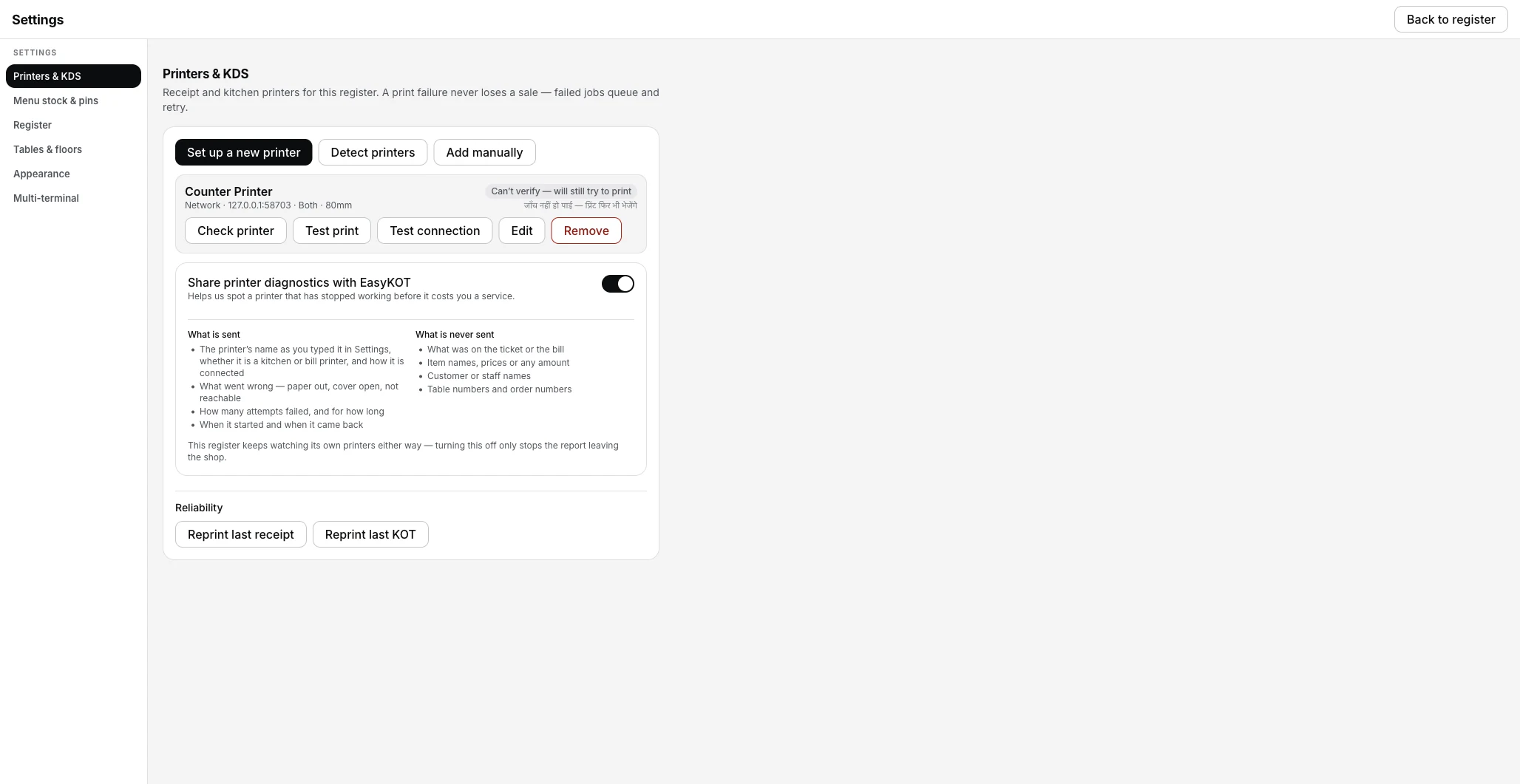
The honest grey — a printer that never answers status questions, still queued for every ticket.
Press Check printer on the row before you touch anything else — it asks the same five questions in order (power, cover, language, health, a test slip) and names the first one that needs attention:
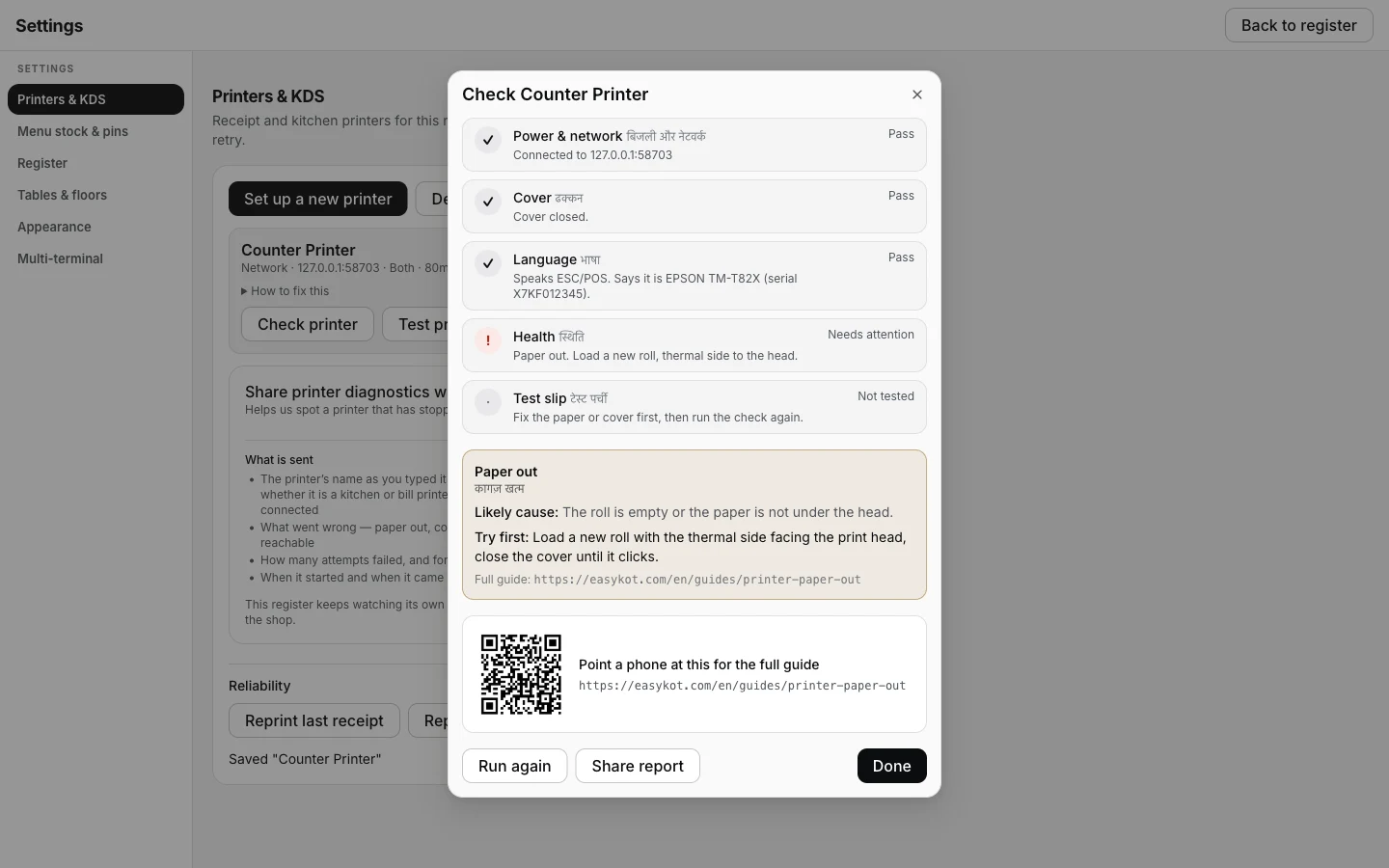
Check printer naming the exact fault — here, paper out — with its guided fix and a QR code to this same site.
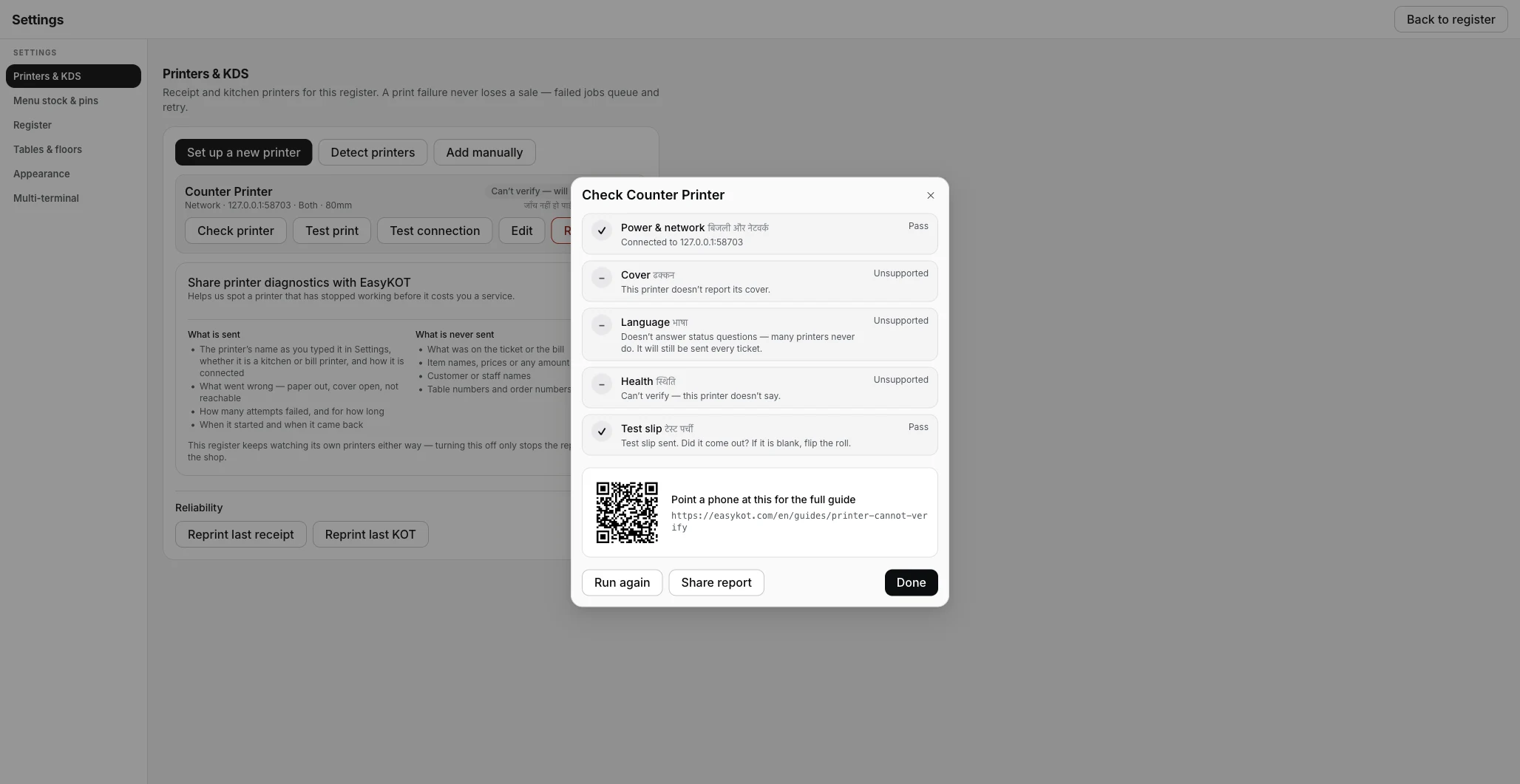
A printer that never answers status questions at all — every step but the test slip reads Unsupported, which is honest, not broken.
6. The bill printed, but the KOT never reached the kitchen
Two printers, two different fates. Start by working out which printer the ticket was aimed at.
- In Settings → Printers & KDS, check the kitchen printer's Role reads Kitchen (KOT). If no printer has that role, KOTs fall back to the receipt printer — so look at the counter roll before you look at the kitchen.
- Press Test print on the kitchen printer specifically, then walk to the pass and look. The screen cannot tell you what is lying in the kitchen.
- Check the N failed pill under Reliability, and use Reprint last KOT to push the ticket again.
- If a waiter fired the round from a phone and the phone still shows it as unconfirmed, the round has not reached the register yet — put the phone back on the shop Wi-Fi, or tell the kitchen by voice for that one order.
Check which printer the KOT was routed to walks the whole roles model in one page.
7. The Bluetooth printer stopped appearing on the phone
A Bluetooth printer has to be paired in the phone's own Bluetooth settings before EasyKOT will show it. If it vanished from the list, the pairing or the permission went, not the app.
- Open Android's Bluetooth settings. If the printer is no longer listed as paired — some cheap printers drop the bond when the battery fully dies — pair it again there.
- If EasyKOT asks for the Nearby devices permission, choose Allow. If the ask no longer appears (a "Don't allow" too many), grant it in Android: Settings → Apps → EasyKOT → Permissions → Nearby devices → Allow. Android also revokes permissions for apps you have not opened in a while.
- Make sure no other phone is holding the printer — Bluetooth printers take one connection at a time.
- On a laptop, a paired Bluetooth printer appears under Other devices on this computer in Detect printers, and is added as Serial / Bluetooth.
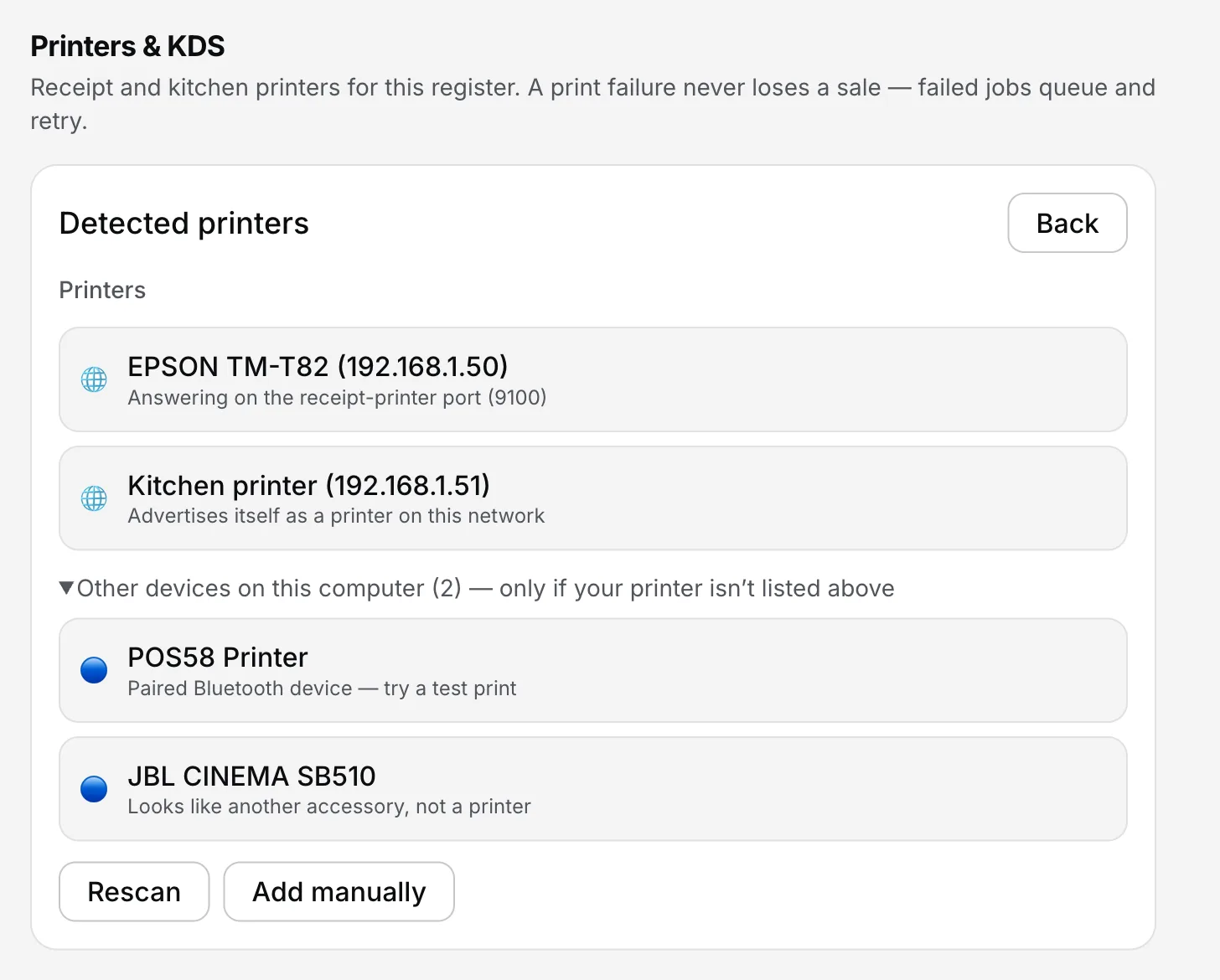
Settings → Printers & KDS → Detect printers → Other devices on this computer.
The full Bluetooth printer walkthrough for Android covers pairing from scratch.
8. The cash drawer didn't open
The drawer is not a device EasyKOT talks to. It is wired into the receipt printer's DK port, and the printer flicks it open — so a silent drawer is a printer or cable question.
- Check the RJ-11 style cable is seated in the printer's DK port, not in a phone socket that happens to fit.
- Switch the Cash drawer pin setting between Pin 0 / DK 1 and Pin 1 / DK 2 and settle a test sale. Different drawers use different pins; that is the whole procedure.
- Confirm the printer you wired the drawer into is the one with the Receipt role — the drawer kick follows the receipt printer.
- Remember the drawer fires on every settle, cash or UPI. If it never fires on any of them, it is the wiring.
9. It worked yesterday and not today
Something on the network moved overnight. Nothing in EasyKOT changes by itself.
- The printer's IP address is the usual answer — after a power cut the router hands it a new one. Press Detect printers and compare with what is saved. Often nothing to do: EasyKOT remembers the printer by its hardware address, not just its IP, and looks for it there first — a router reshuffle is frequently a non-event you never see.
- A new router, or a router reset, means a new network. Both devices need to be on it.
- A laptop that auto-joined a neighbour's Wi-Fi or stayed on a hotspot cannot see the printer at all.
- Then fix it permanently: a static IP for the printer costs ten minutes once and buys back every future evening.
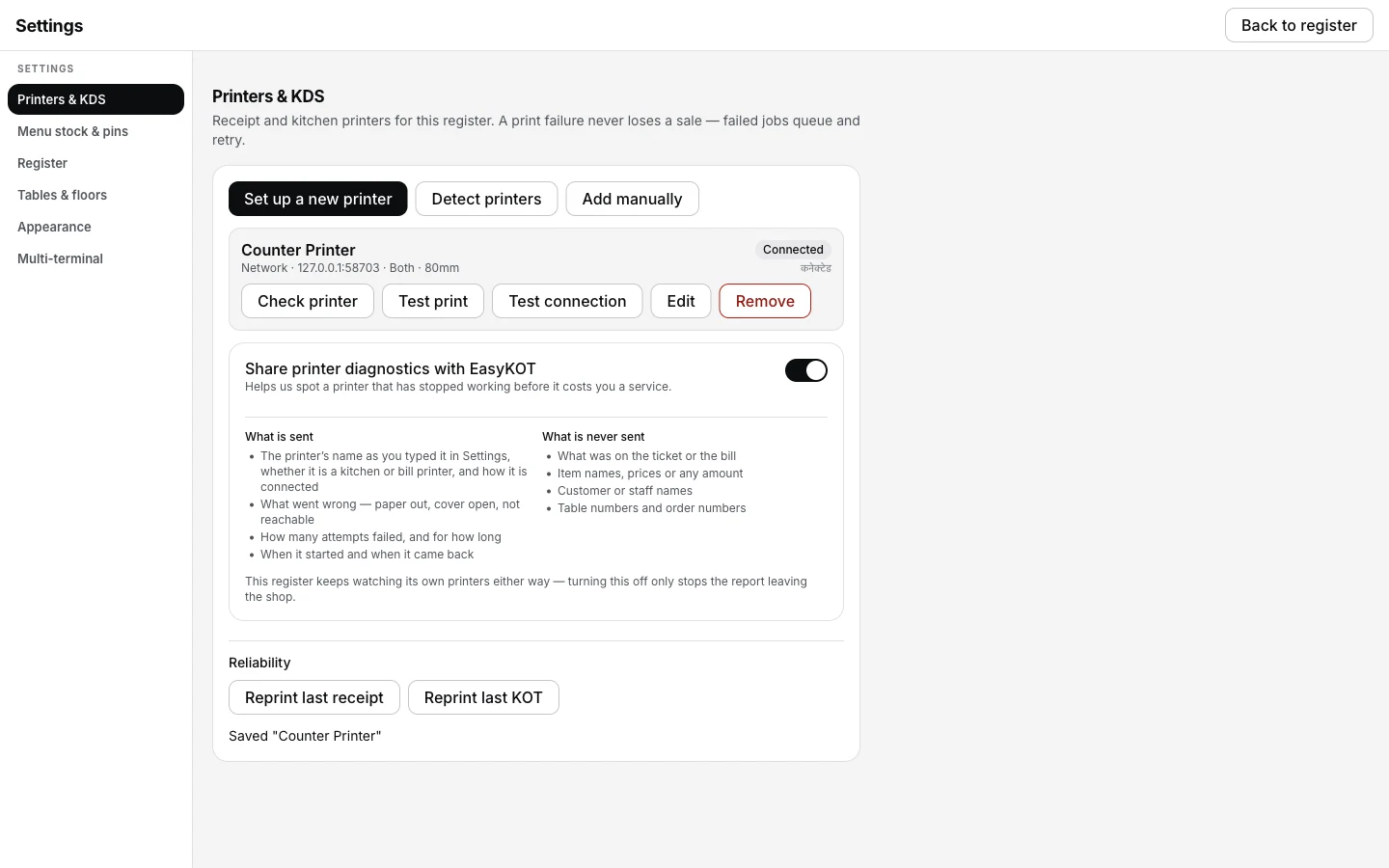
Once the address is right again, the row settles back to Connected — no different from a printer that never moved.
Nothing above matching? Connect it again from scratch — removing the printer and re-adding it takes two minutes and clears a surprising number of ghosts. If the internet is down too, that changes nothing about printing: billing when the internet is down explains why.
Send us a photo of the slip.
A picture of what came out of the printer — even a blank one — tells us more than a paragraph of description. Send it on WhatsApp with three things and we will usually name the cause on the first reply: what the slip looks like, whether the printer is on Wi-Fi, USB or Bluetooth, and what the Test print said.
Support comes from the people who built it — and it is included, not a paid tier.
Not on EasyKOT yet? A print failure never loses a sale here — that is the point. 3 months free, ₹0 today, no card. On a laptop you can also try the register in your browser first; printing is the one thing a browser cannot do.
Or go straight to what you are seeing.
Each of these is titled with the exact words the register uses under “How to fix this” on the printer's row, so the page you land on is the page about your problem — and it is the same page that link, and the QR beside it, point at.
Printer prints blank
Clean, empty slips — the roll is in coated-side out.
Flip the roll →Printer prints garbage or boxes
Something prints, but not your words: width, baud rate, emulation.
Fix the characters →Printer does not cut
Joined slips, a missing cutter, or a jammed one.
Fix the cutter →Printer was working, now shows Offline
The router moved the printer's address overnight.
Chase the address →Nothing finds the printer, even by IP
AP isolation, guest Wi-Fi, or a second router.
Check the router →Printer is on a different network
Two addresses that were never going to reach each other.
Compare them →USB printer not found
The charge-only cable, and the driver holding the port.
Fix USB →Bluetooth printer is paired but nothing prints
The COM port Windows never made; the phone still holding it.
Fix Bluetooth →Printer prints once, then stops
A sleeping radio, a full buffer, or a quiet paper-out.
Fix the stall →Two bills came out
An interrupted print, and the DUPLICATE stamp on the copy.
Read about duplicates →Paper out
The roll is finished — printing pauses and the tickets wait.
Reload the roll →Cover open
Two catches, two clicks — and the queue drains itself.
Close the cover →Cutter jammed
Paper chips in the blade channel; clear it with the printer off.
Clear the cutter →Can’t verify — will still try to print
The printer answers nothing. Nothing is wrong; jobs are still sent.
Read the honest grey →macOS is blocking local network
A privacy prompt answered no makes every printer look dead.
Turn it back on →Straight answers.
Why does my thermal printer print blank paper?
Do I lose the bill if the printer fails mid-rush?
How do I reprint a bill or a KOT?
Why does the reprint say DUPLICATE?
Thermal printer print nahi ho raha — sabse pehle kya check karun?
It worked yesterday and not today — what changed?
Do I need to reinstall a driver?
What does Check printer actually check?
Related: connect a thermal printer · kitchen KOT printer and the cash drawer · the print queue and reprints · all EasyKOT guides
3 mahine chalao, phir paisa lagao.
Three months free, full product, no card. Made in India, for the counter — built inside a running restaurant.